
Configure a target
A target must be configured before you can start it. Until then it shows as Future (unconfigured).
- Open the target from the care plan.
- Tap Configure Target (or Edit on a configured target).
- Fill in the fields and save.
What you configure
Section titled “What you configure”| Field | Required | Notes |
|---|---|---|
| Form of measure | Yes | Percent correct, task analysis, count or duration. See Forms of measure. |
| Mastery criteria | Yes | For example, 80% correct across 3 consecutive sessions. |
| Minimum trials | For percent correct, task analysis and average duration | Scores with fewer trials are preliminary and aren’t graphed. |
| Expected trials | For percent correct and task analysis | Shows the technician how many trials to run. |
| Task analysis steps | For task analysis | At least two steps, up to 30 characters each. |
| Intervention techniques | Yes | Shown on the target card and pre-selected in the session note. |
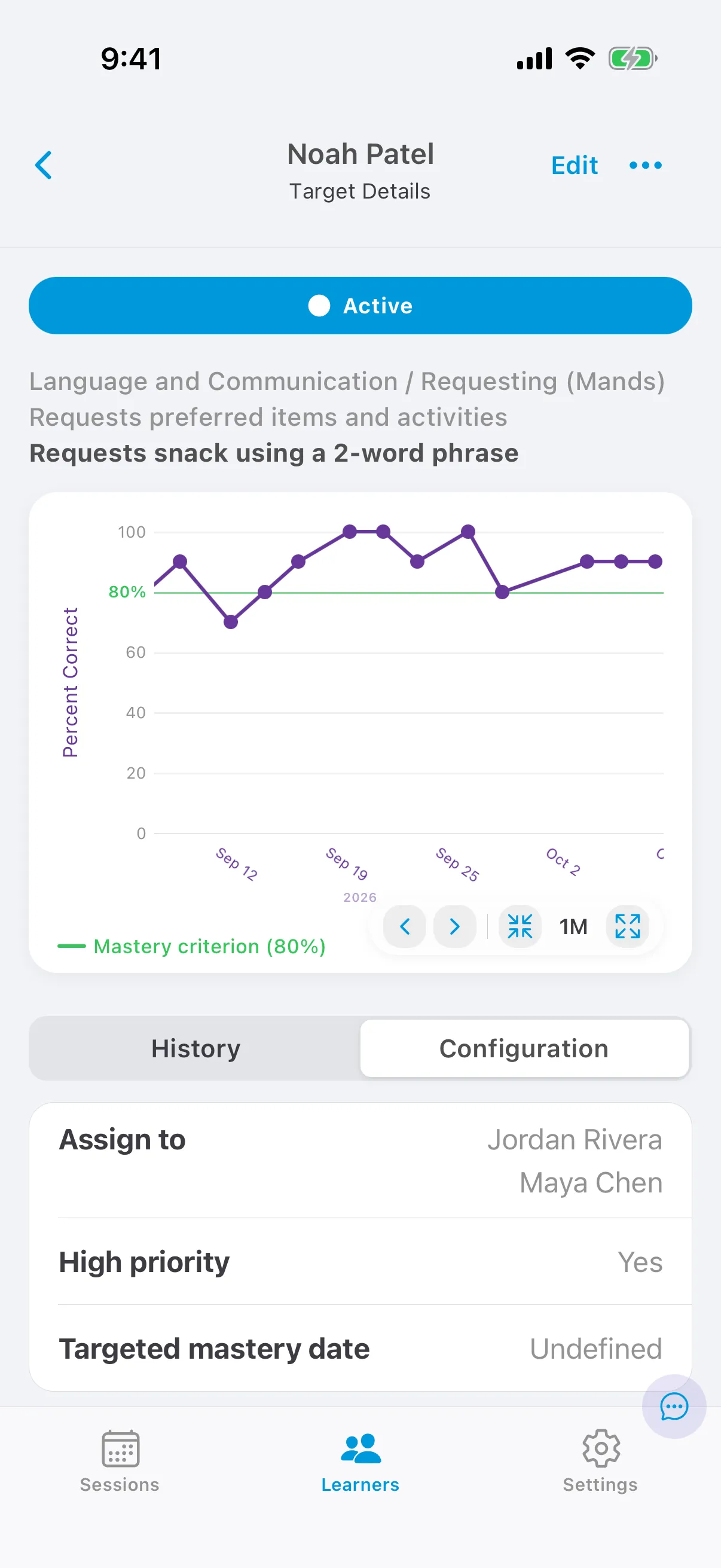
| Assign to | Yes | The providers who collect data on this target. |
| SD, instructions, required materials | No | Shown on the target card’s Instructions tab. |
| Prompting | No | Prompt levels, fading across sessions or within trials, and a prompt delay. |
| High priority | No | High-priority targets appear first in sessions. |
| Targeted mastery date | No |
Configure a prompting workflow
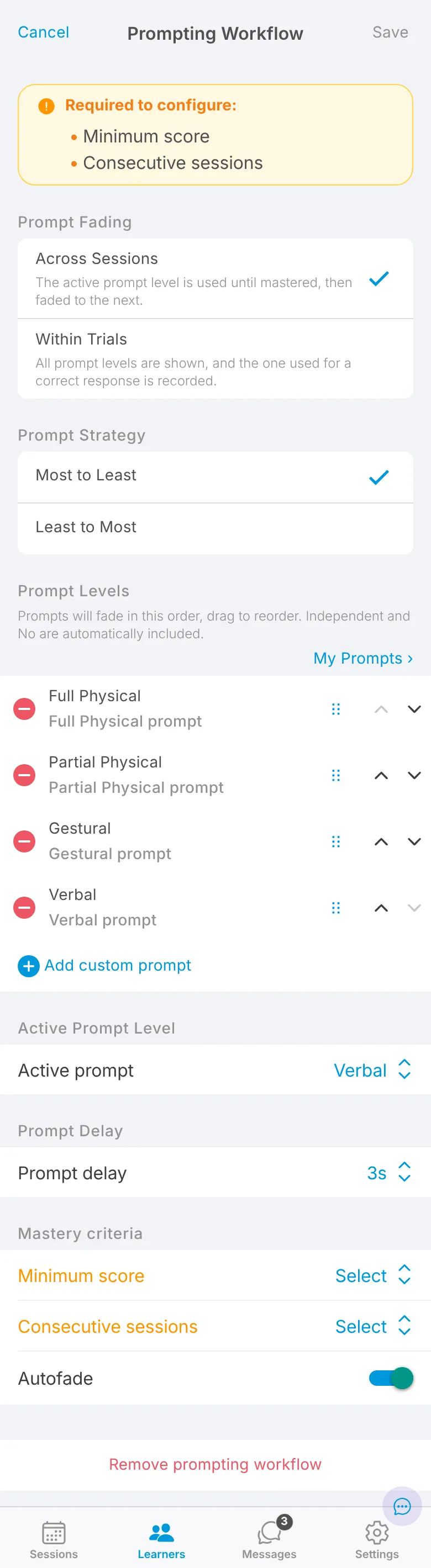
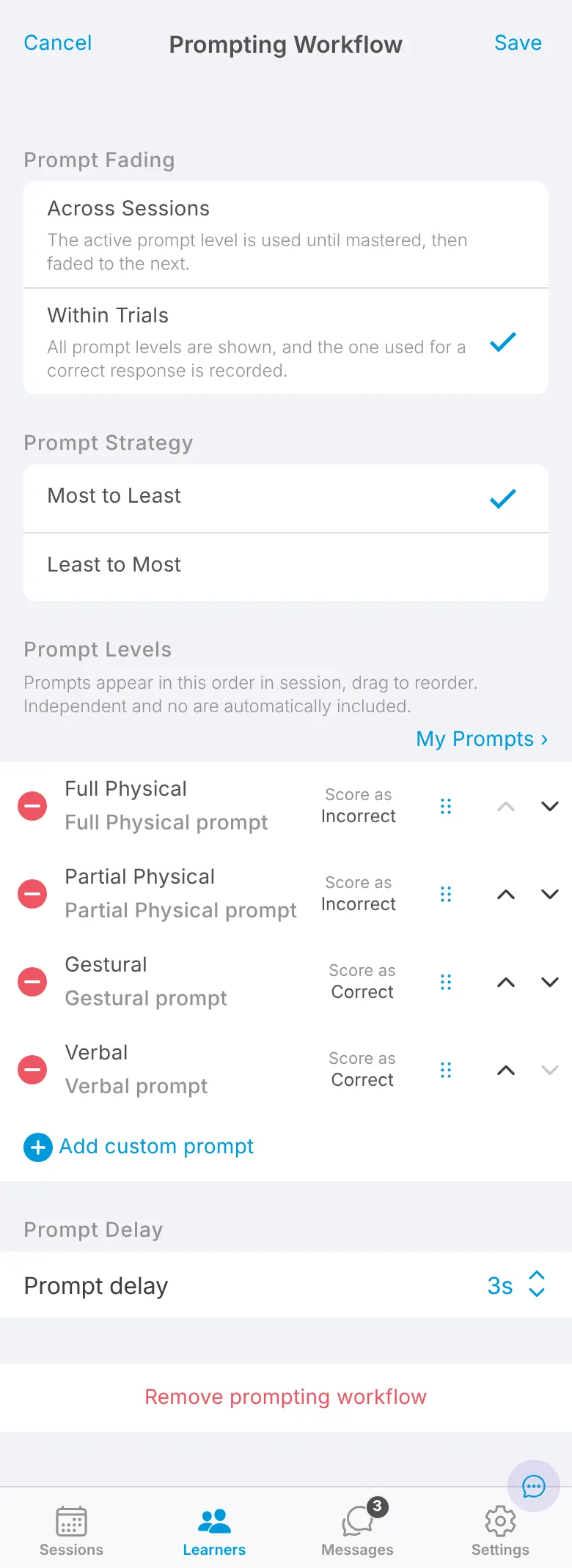
Section titled “Configure a prompting workflow”Percent-correct targets can include a prompting workflow. In the target’s configuration, open the prompting workflow section and set:
- Prompt fading: Across sessions has the technician use one prompt level until it is mastered, then fade to the next. Within trials lets the technician try several levels in a trial and record which one produced a correct response.
- Prompt strategy: most-to-least or least-to-most.
- Prompt levels: add custom levels, or pick from My Prompts, your personal list. Give each level a name and a description that tells the technician how to prompt. For fading within trials, choose whether a correct response at that level scores as correct. Drag levels into the order they should appear, or fade.
- Prompt delay: how long the technician waits before prompting. It shows on the target card.
- Mastery criteria: for fading across sessions, when to fade to the next level. Turn off auto-fade to fade by hand.
Configure an ABC objective (coming soon)
Section titled “Configure an ABC objective (coming soon)”An ABC objective lets technicians record the antecedent and consequence of each occurrence of a behavior. See ABC observation.
- Open the behavior from the care plan and tap + to add objectives.
- Choose ABC Observation.
- Tap OK, then start the objective.
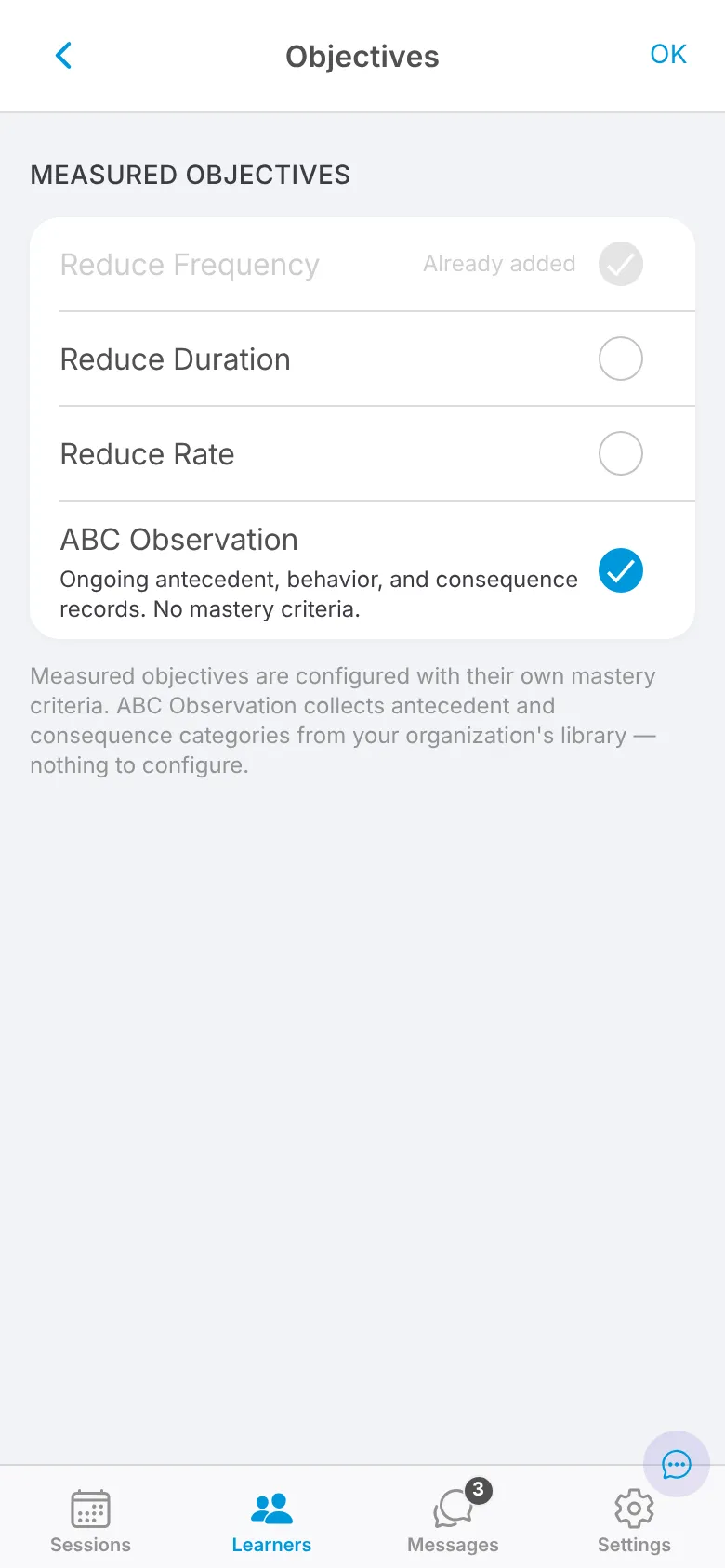
There is nothing else to configure: an ABC objective has no mastery criteria, and the antecedent and consequence options come from your organization’s library. A behavior can have an ABC objective alongside a Reduce Frequency, Duration or Rate objective.
Clone a target
Section titled “Clone a target”Copy a configured target, for example to change its form of measure once it has data.
- Open the target and tap ⋯, then Clone target.
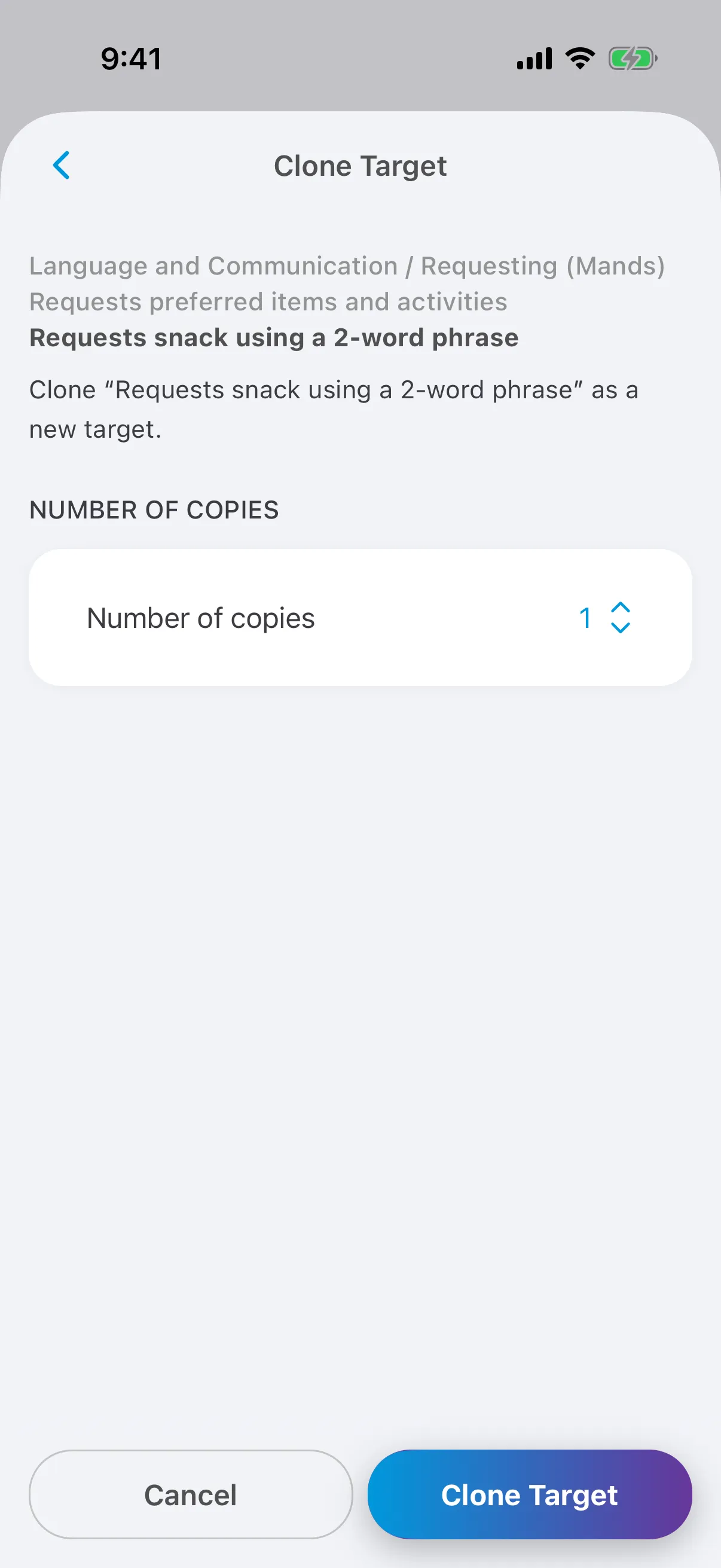
- Choose the number of copies.
- Tap Clone Target.
The copies are added to the same goal on the same learner’s care plan. Each copy is named after the original with _Copy1, _Copy2 and so on added. If that makes the name longer than your organization’s character limit, you can shorten it and retype.