

Sync and working offline
Note keeps a copy of your organization’s data on your device, so you can run sessions and collect data without an internet connection. When you’re online, Note syncs: it sends your changes to your organization and downloads theirs.
Sync happens automatically: when you open Note, regularly while you use it, and after you save changes.
Check sync status
Section titled “Check sync status”Open Settings. The Sync section shows:
- Last sync: when Note last synced successfully.
- Network: whether this device is online. Tap it to check that Note can reach your organization.
- Unpushed items: changes on this device that haven’t reached your organization yet. Tap it to see them.
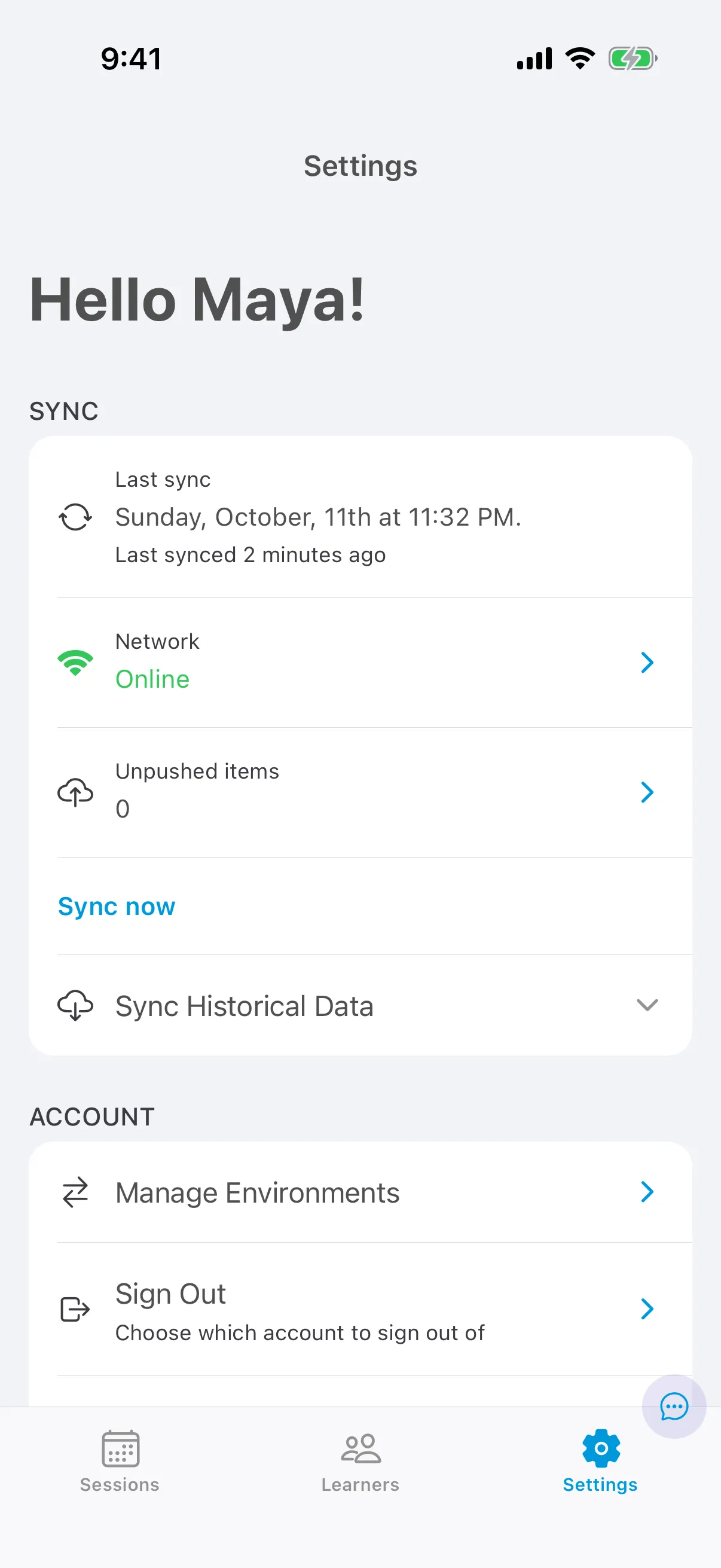
To sync right away, tap Sync now.
Get older data
Section titled “Get older data”Note keeps recent months of history on your device. To see older sessions and data, open Sync Historical Data and choose how far back to download.
Working offline
Section titled “Working offline”- You can start sessions, collect data and write notes offline. Your work is saved on the device.
- Sign & Submit needs a connection.
- When you’re back online, Note sends your changes. Keep an eye on Unpushed items: when it reaches 0, everything has been sent.
Sign out
Section titled “Sign out”Open Settings and tap Sign Out. If you use Note for more than one organization, choose which account to sign out of. Next time, you sign in with your email and password instead of your PIN.
Get help with sync
Section titled “Get help with sync”If Note isn’t syncing, email help@chorus.cloud. Don’t delete the app while Unpushed items is above 0: deleting it deletes the changes that haven’t been sent yet.