
Welcome to Note
Note is where your ABA team runs sessions, collects data and manages care plans. It works on iPhone, iPad, Android, Mac and Windows, and it keeps working when you are offline.
The app has four main areas. On a phone they are the tabs along the bottom of the screen; on a tablet or computer they are in the sidebar.
| Area | What you do there |
|---|---|
| Home | See your next session and your To Dos: notes to write, signatures and declined sessions. |
| Sessions | See your schedule, start sessions, collect data, write session notes and submit. |
| Learners | Open a learner’s care plan, sessions and profile. |
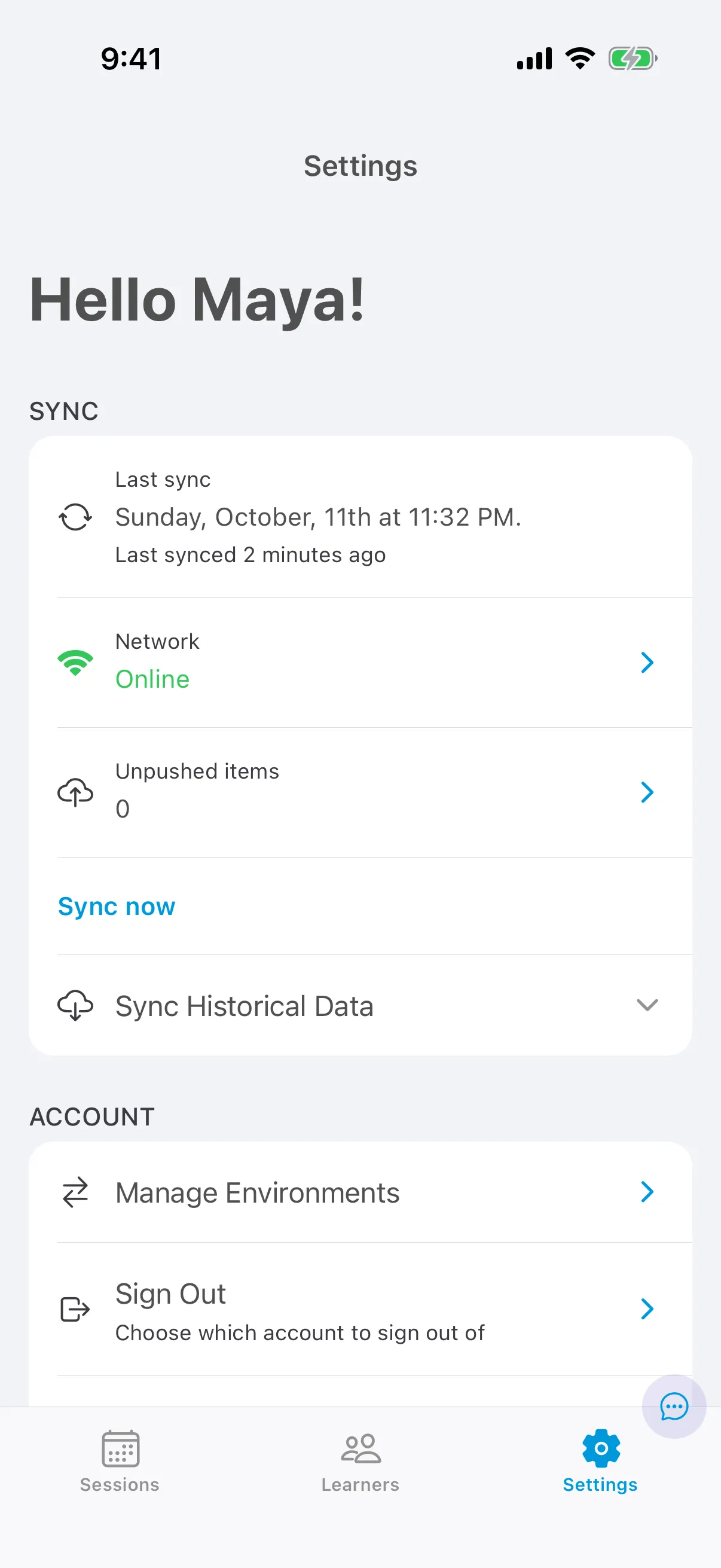
| Settings | Check sync, change your PIN and manage your account. |
Home is where Note opens. It answers two questions: what’s next today, and what’s waiting on you.
At the top are today’s date and a greeting with your first name. Below that are two cards.
Your session. The session card shows one session:
- In progress: how long it has been running, the learner, the service and start time, the Behavior Technician, how many targets you’ve run and trials you’ve recorded, and Resume session.
- Up next: how soon it starts (for example “Up next · in 20 min”, or how late it is if it hasn’t started), the learner, the service and times, the Behavior Technician, where it is, and View session.
- Nothing else today: only the schedule link.
At the bottom, Today’s schedule shows how many more sessions you have today and opens them in the Sessions tab’s Day view.
To Dos. The To Dos card lists what you owe, with a count for each row. Tap a row to see its list.
| Row | What’s in the list |
|---|---|
| Session Notes | Sessions that need a note or data, under Overdue and Due today. Each one goes straight to what’s missing: Add data, Start note or Finish note. |
| Signatures | Your own sessions to Sign & submit; for BCBAs, BT notes to co-sign; and sessions waiting on a Caregiver signature. |
| Sessions Needing Attention | Sessions your organization declined, with the reason. See Why a session was declined. |
| New behaviors for review | For BCBAs: behaviors recorded in a session that need a decision, marked New or On care plan. Tap Review. |
A row with nothing in it isn’t shown. When there’s nothing to do, the card says You’re all caught up. The number on the Home tab is your To Dos total.
When you open a session from Home, Back returns you to Home.
Sessions
Section titled “Sessions”The Sessions tab shows your schedule, starting with today. Switch between Day, Week, Month and Agenda views, and tap a session to open it.
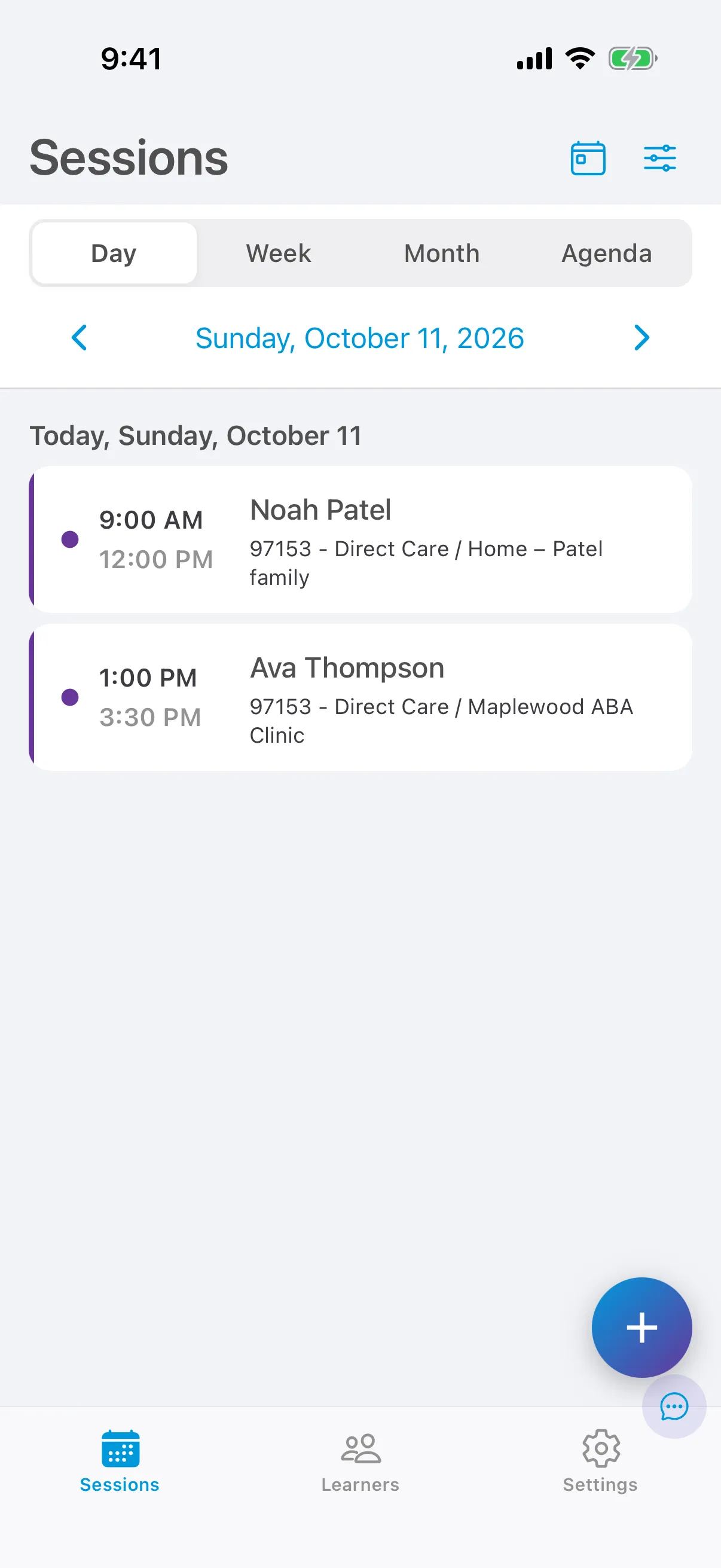
Each session has three tabs:
- General: the date, time, learner, service and location, plus the status.
- Observations: the targets and behaviors to collect data on (direct care sessions only).
- Session Note: your summary of the session.
Learners
Section titled “Learners”The Learners tab lists the learners whose care team you are on. Your organization maintains this list.
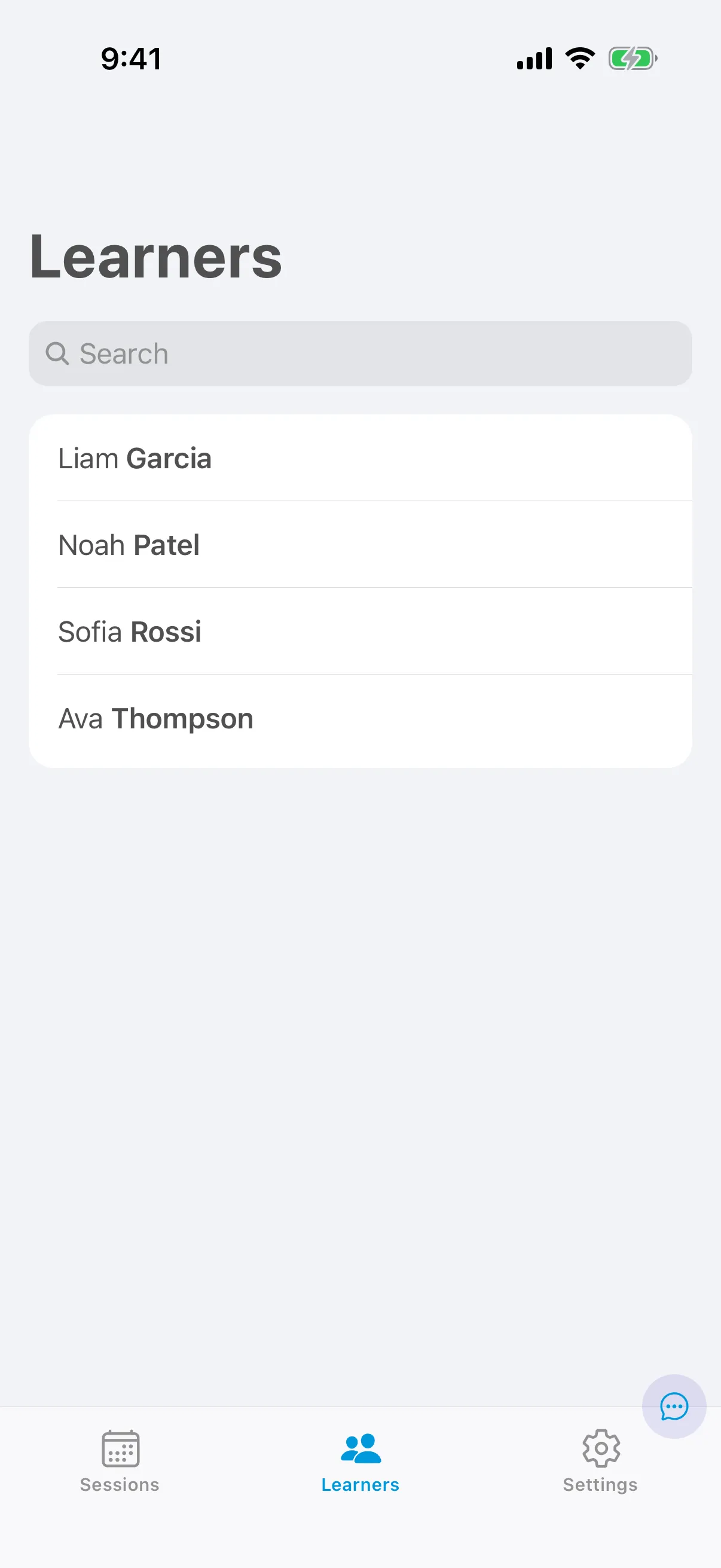
Open a learner to see three tabs:
- Care Plan: goals and targets for skill acquisition, and behaviors and objectives for behavior reduction, sorted into Future, In Progress and Past.
- Sessions: every session for this learner, from the whole care team.
- Profile: date of birth, contact information, care team and authorization details.
Settings
Section titled “Settings”Settings shows when Note last synced with your organization and lets you sync now. It is also where you change your PIN, manage your organizations and sign out.