

Guided session notes
A guided session note walks you through the session note your organization set up for the service you provided. Instead of a fixed set of sections, the Session Note tab shows the sections and fields from your organization’s note template, with guidance on what to write in each one. Where the session already recorded the answer, Note fills it in for you.
How Note picks the template
Section titled “How Note picks the template”Your organization’s administrators build note templates in Chorus and assign each one to the notes it should be used for. When you open the Session Note tab, Note finds the template for the session:
- By service. Most organizations assign a template to each type of service, such as Direct Treatment, Supervision, Family Training or Assessment.
- By payer and procedure code. Some organizations assign templates to a payer and procedure code instead, or to a procedure code for all payers. Note uses the payer the session’s authorization is billed to. A payer and code can have a different template for each kind of note, so a direct care session and a supervision session billed under the same code can still use different templates.
If no template is set up for the session’s payer and code, the Session Note tab says “No note template is set up for this payer and code — contact your manager”.
Fill in the sections
Section titled “Fill in the sections”Each section of the template is a card with its title at the top. Tap the title to collapse or expand it. Sections appear in the order your organization set.
Participants
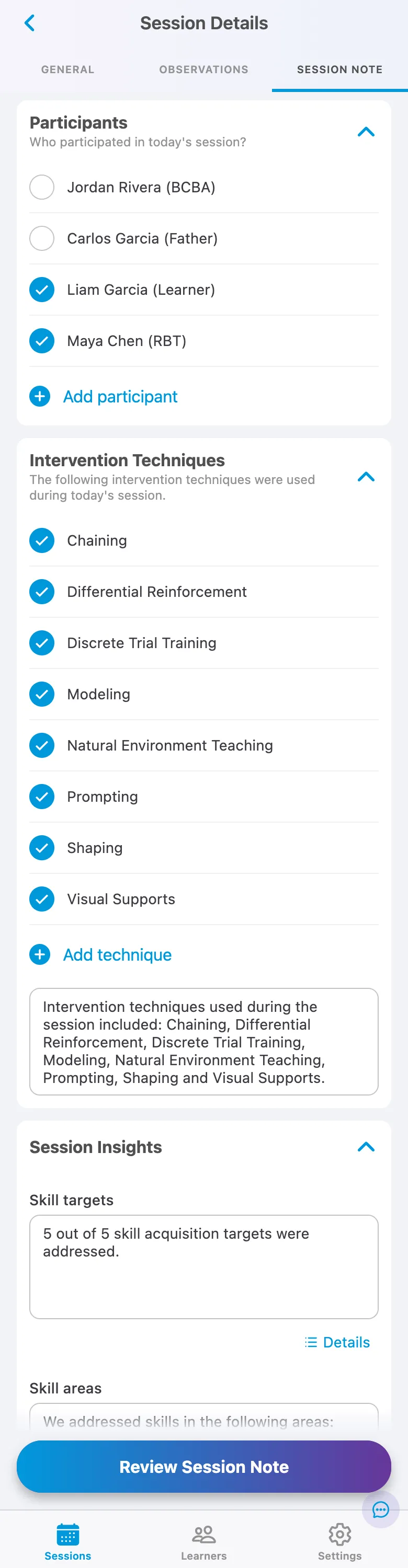
Section titled “Participants”Participants lists who can take part in the session: the learner, you, the BCBA and the learner’s caregivers. Everyone listed starts out selected, so clear anyone who wasn’t there. Other behavior technicians on the learner’s care team aren’t listed.
To add someone who isn’t listed, tap Add participant and type their name and role, such as “Mother (Jane Smith)”. Tap the pencil to rename someone you added.
Field types
Section titled “Field types”| Field | What you do |
|---|---|
| Free text, Long text | Type your answer. A long text field gives you a larger box for paragraphs. |
| Yes/No, choice lists, checkboxes | Choose the answers that apply. |
| Numeric | Enter a number. |
| Session data | Check, and edit if needed, a sentence Note writes from the session’s data. See Session data fields. |
Your organization decides which fields are required. Note saves your answers as a draft as you go, so you can leave the tab and come back.
Session data fields
Section titled “Session data fields”A session data field starts with a sentence Note writes from what you recorded in the session, such as the targets you worked on, the skill areas they cover, or the problem behaviors that came up. For example: “2 out of 46 skill acquisition targets were addressed.”
- Read the sentence and edit it so it describes the session accurately. Once you edit it, Note keeps your wording even if the session’s data changes.
- If you clear the box, that field is left out of the note.
- If the session has nothing to report for the field, the field is empty.
- When there’s more data behind the sentence, a Details button opens it, such as each target’s scores and trend, or each behavior’s count. Details are read-only and never print in the note.
Direct care notes
Section titled “Direct care notes”A new Direct Treatment template starts with these sections. Your organization can rename, reorder or remove any of them, and add its own.
- Participants: who was present. See Participants.
- Intervention Techniques: the techniques you used.
- Session Insights: a section for session data fields your organization chooses, such as skill targets addressed, skill areas and problem behaviors.
- Setting Events: anything that may have affected the session or the learner’s behavior.
- Preferences and Reinforcers: what the learner preferred and which reinforcers you used.
Intervention Techniques
Section titled “Intervention Techniques”Intervention Techniques lists every technique configured on the targets you collected data on, all selected. Clear the ones you didn’t use. To add one that isn’t listed, tap Add technique and type its name.
Below the list, Note writes the sentence your selection prints, for example “Intervention techniques used during the session included: Direct Instruction and Functional Communication Training.” You can edit it like any session data field.
The section only appears when the session recorded at least one technique.
Supervision, family training and assessment notes
Section titled “Supervision, family training and assessment notes”A new template for these sessions starts with three sections. As with direct care, your organization can change them and add its own.
- Participants: who was present. See Participants.
- Session Summary: a checklist of the tasks you did. Your organization chooses which tasks appear.
- Barriers to Treatment: a Yes/No question about whether barriers came up, with a box to describe them.
Complete the Session Summary
Section titled “Complete the Session Summary”Select each task you did. Some tasks open more options or a box for detail. The box’s placeholder tells you what to write. When Note can see from the session that nothing happened, for example no targets were added to the care plan that day, the placeholder says so. Tasks with an Other option let you add something that isn’t listed. Each task you select becomes a sentence in the note.
Supervision
Section titled “Supervision”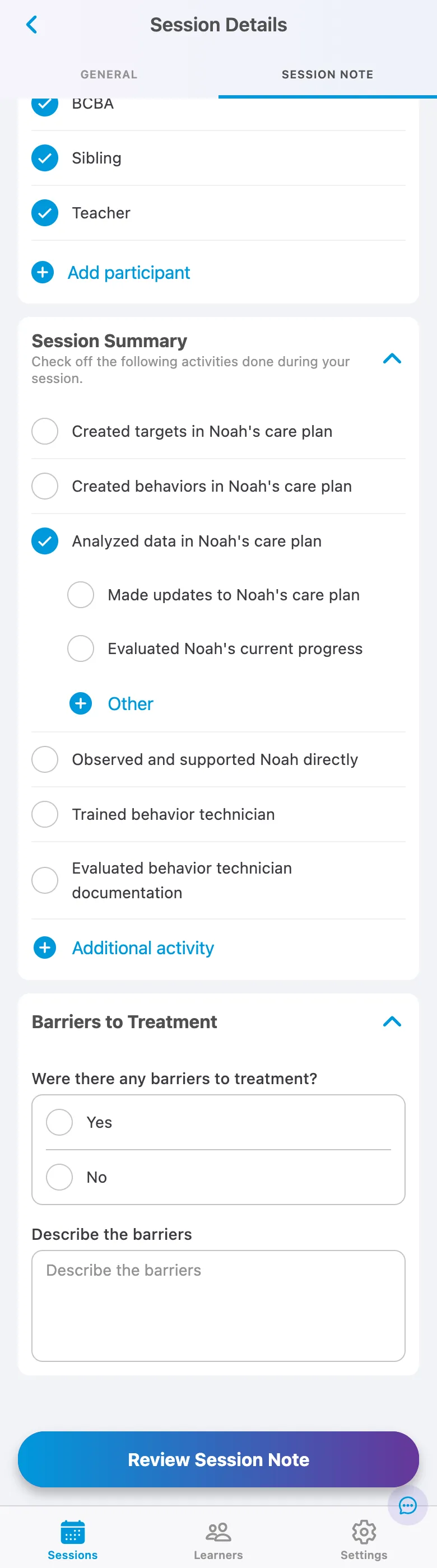
- Created targets in the learner’s care plan: No targets were added to the care plan on the day of this session. List targets. (Other: List other targets.)
- Created behaviors in the learner’s care plan: No behaviors were added to the care plan on the day of this session. List behaviors. (Other: List other behaviors.)
- Analyzed data in the learner’s care plan (Other: Describe in complete sentences.)
- Made updates to the learner’s care plan: No condition changes or phase updates were created on the day of this session. Describe updates and rationale. (Other: List other updates.)
- Evaluated the learner’s current progress: Describe analysis and insights.
- Observed and supported the learner directly (Other: Describe in complete sentences.)
- Probed skills: Describe skills that were probed.
- Observed and supported skill acquisition: No data was collected on skill acquisition targets data on the day of this session. Describe skill levels. (Other: List other skills.)
- Observed and supported behavior reduction: No data was collected on behavior reduction objectives on the day of this session. Describe behavior levels. (Other: List other behaviors.)
- Trained behavior technician (Other: Describe in complete sentences.)
- Modeled intervention techniques: More detail? Add it here.
- Retrained data collection procedures: More detail? Add it here.
- Reviewed instructions and interventions: More detail? Add it here.
- Provided reinforcing and constructive feedback: More detail? Add it here.
- Evaluated behavior technician documentation (Other: List other documentation.)
- Session Notes
- Data Collection
- Graphs
Family training
Section titled “Family training”- Trained the learner’s stakeholder (Other: Describe in complete sentences.)
- Modeled intervention techniques: More detail? Add it here.
- Retrained data collection procedures: More detail? Add it here.
- Reviewed instructions and interventions: More detail? Add it here.
- Provided reinforcing and constructive feedback: More detail? Add it here.
- Reviewed targets in the learner’s care plan: List targets that were reviewed.
- Reviewed behavior intervention plans: Describe intervention plans that were reviewed.
Assessment
Section titled “Assessment”- Administered assessment (Other: List assessment tool.)
- VB-MAPP
- ABLLS
- AFLS
- Vineland
- EFL
- ATEC
- FAST
- QABF
- Observed the learner to measure skill performance (Other: Describe in complete sentences.)
- Probed skills: Describe skills that were probed.
- Measured skill performance: You did not collect data on skill acquisition targets data on the day of this session. Describe skill levels.
- Collected data on maladaptive behaviors: You did not collect data on behaviors on the day of this session. Describe behavior levels.
- Created targets based on assessment results: No targets were added to the care plan on the day of this session. List targets.
- Created behaviors based on assessment results: No behaviors were added to the care plan on the day of this session. List behaviors.
- Developed behavior intervention plans: Describe behavior intervention plans.
- Modified behavior intervention plans: Describe modifications and rationale.
- Updated the learner’s assessment report: Describe updates.
- Reviewed relevant records (Other: List other records.)
- Diagnostic evaluations
- IEPs
- Previous assessment reports
- Coordinated care with the learner’s stakeholders (Other: List other stakeholders.)
- Caregiver/parent
- External providers
Review the note
Section titled “Review the note”When you’ve filled in the sections, tap Review Session Note.
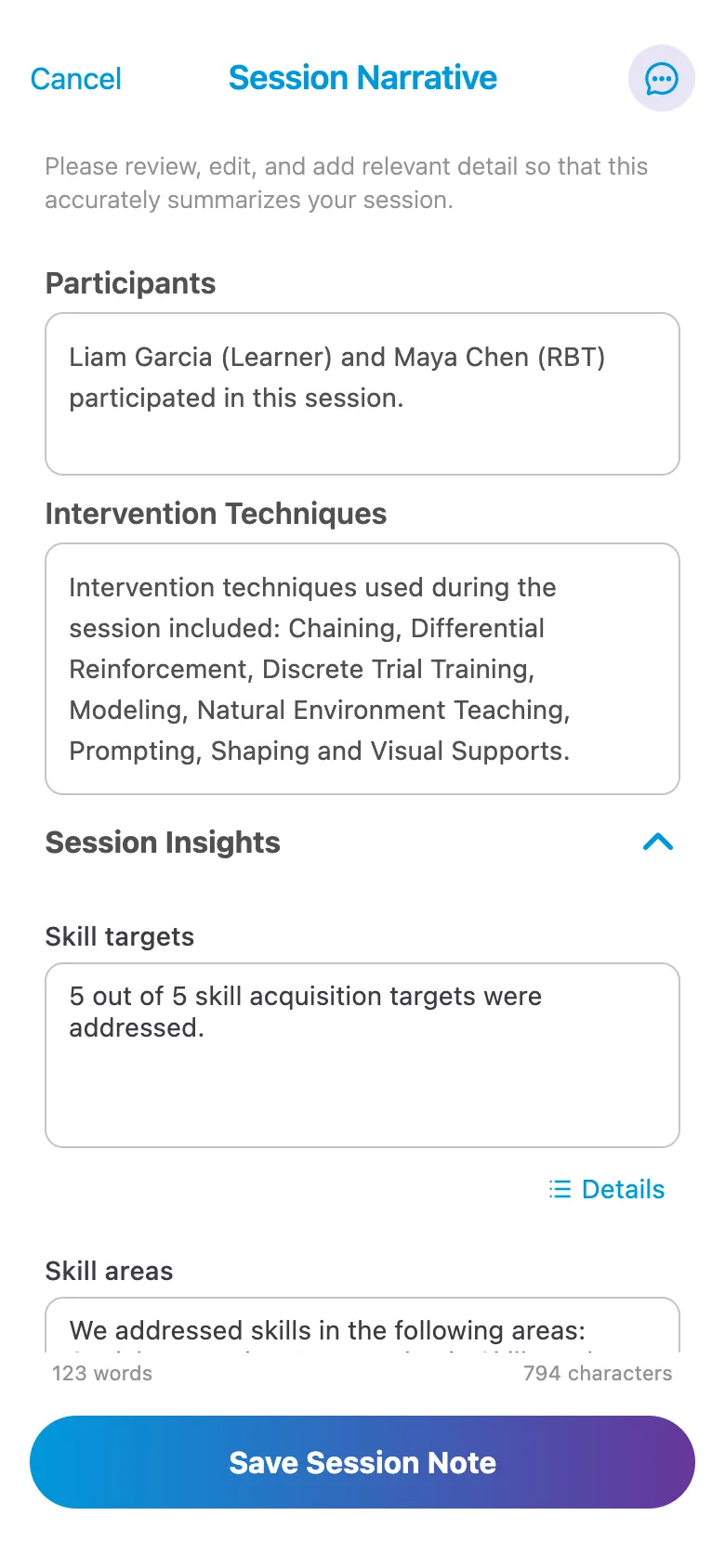
- If a required field is empty, Note shows Complete required fields and names the section to finish.
- Review shows every section of the template in order. A section you left empty shows an empty box with an orange Not answered yet note. Empty sections are left out of the saved note, so you don’t need to fill them in unless you have something to add.
- Read each section and edit the text so it accurately describes the session. The word and character counts update as you type.
- If there is nothing to save, Save Session Note is unavailable and Note asks you to enter a narrative.
Tap Save Session Note to save. To change a saved note before you submit the session, open it and tap Edit. Edit shows every section and field, so you can also fill in one you left empty.
The finished note
Section titled “The finished note”The saved note, and the document you sign and submit, read as a clinical document rather than a form:
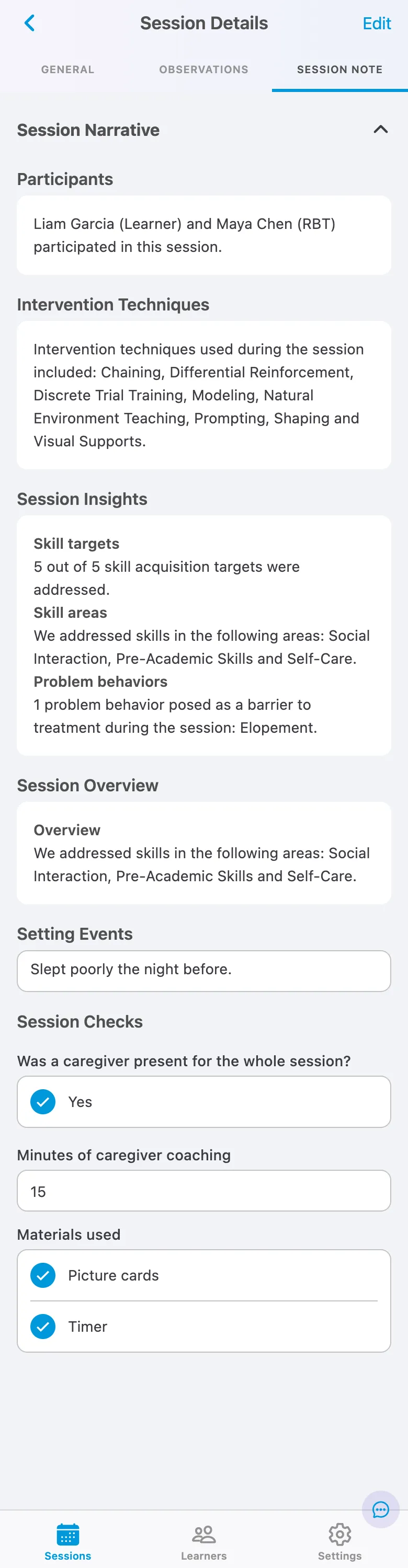
- Each section that has content starts with its title.
- Each field’s label is on its own line above your answer, without a colon.
- Empty fields and empty sections are left out entirely: no label, no dash and no blank line.
- When a section has a single field without its own name, your answer appears directly under the section title.
- Prompts, Details and the “Not answered yet” notes never appear.
Sign the note
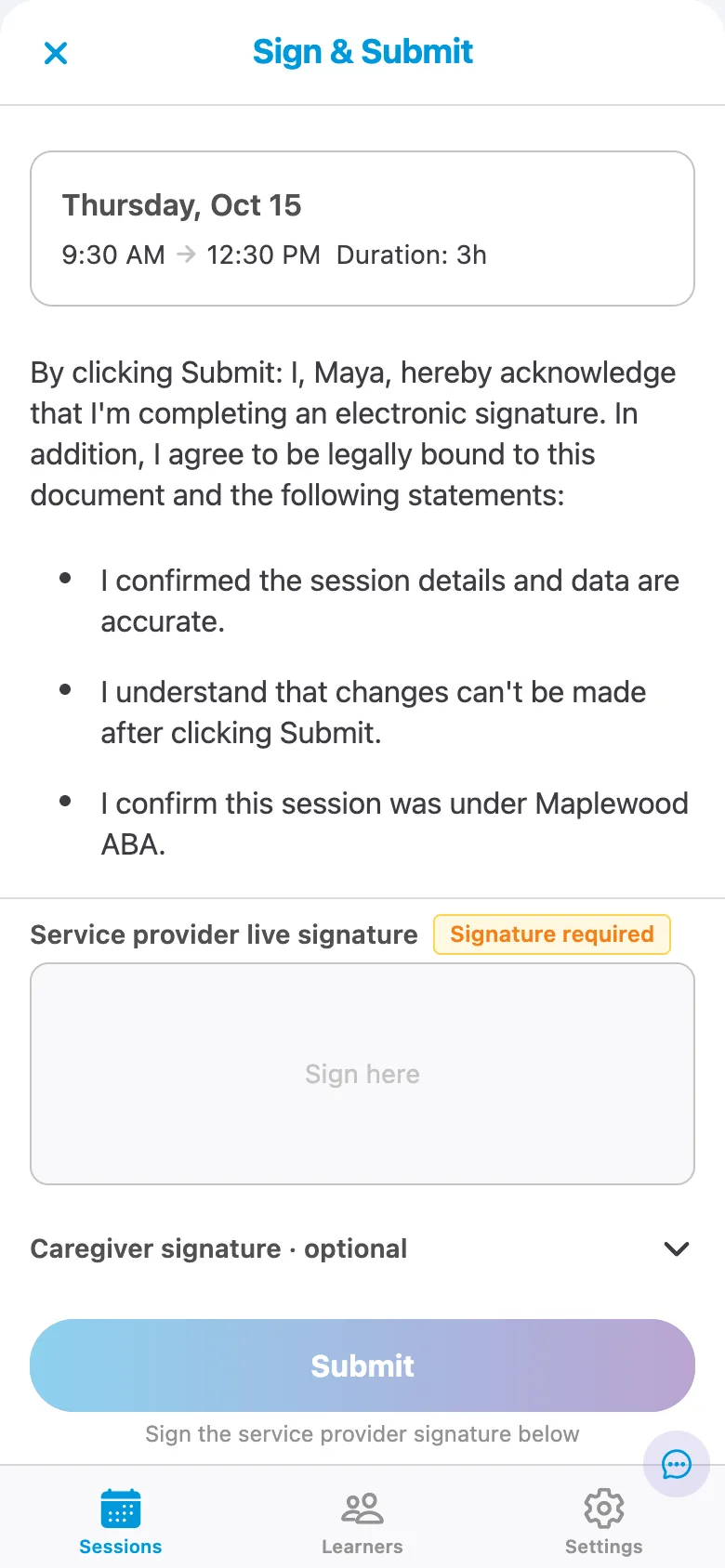
Section titled “Sign the note”When your organization collects signatures on session notes, Sign & Submit shows the full note and the signatures it needs before you submit. Otherwise Sign & Submit works as described in Sign and submit a session.
The full session note export
Section titled “The full session note export”Under Full session note export, Note shows the document your organization receives: the same layout described in The finished note, followed by the signatures. Before showing it, Note sends your latest changes so the document includes them.
If you’re offline, or some changes haven’t synced yet, Note shows a local copy with a banner saying it isn’t the final document. Tap Try again when you’re back online.
Your signature
Section titled “Your signature”The signatures sit above Submit, so you don’t need to scroll to reach them.
- Draw your signature in the Service provider live signature box with your finger or mouse.
- Tap Save. Drawing alone doesn’t save it. Use Clear to start over, or Redo to sign again after saving.
- Once saved, the box shows the date and time you signed, and the signature appears on the export.
Until your signature is saved, the row shows Signature required and Submit stays unavailable.
Caregiver signature
Section titled “Caregiver signature”If the note collects a caregiver signature, tap Caregiver signature and hand the device to the caregiver.
- Under Who is signing?, choose the caregiver. If the learner has only one caregiver on file, they’re already selected.
- The caregiver signs and taps Save.
The export shows the caregiver’s name, their relationship to the learner when it’s on file, the signature, and the date and time. Once a saved signature is linked to a caregiver, you can’t switch it to someone else.
The row shows whether the caregiver signature is optional or required. An optional caregiver signature doesn’t stop you submitting.
Supervisor signature
Section titled “Supervisor signature”When the note needs the supervising BCBA’s signature, Sign & Submit says so. They sign after you submit.
For administrators
Section titled “For administrators”Note templates are set up in Chorus, under Note Templates. A few rules affect what providers see in Note:
- Every section can be renamed, reordered or removed, including the ones a new template starts with.
- Section prompts can be up to 2,000 characters. Field prompts can be added to Free text and Long text fields only.
- A field’s name can be left blank only when it is the only field in its section.
- Mark a field Required to stop providers reviewing the note until it’s answered.
- Preview shows the note the way it will be saved and exported, without prompts.
- Each template sets which signatures it collects (the service provider, a caregiver, the supervisor) and which of them must be saved before Submit. A template where this was never set requires the service provider’s signature, with an optional caregiver signature.
- A change to a template applies to notes started after the device syncs it. Notes already in progress keep the template they started with.