

Collect data in a session
The Observations tab of a direct care session lists every target and behavior you can collect data on in that session. You can collect data right on the list, or open a target’s card.
On the target list
Section titled “On the target list”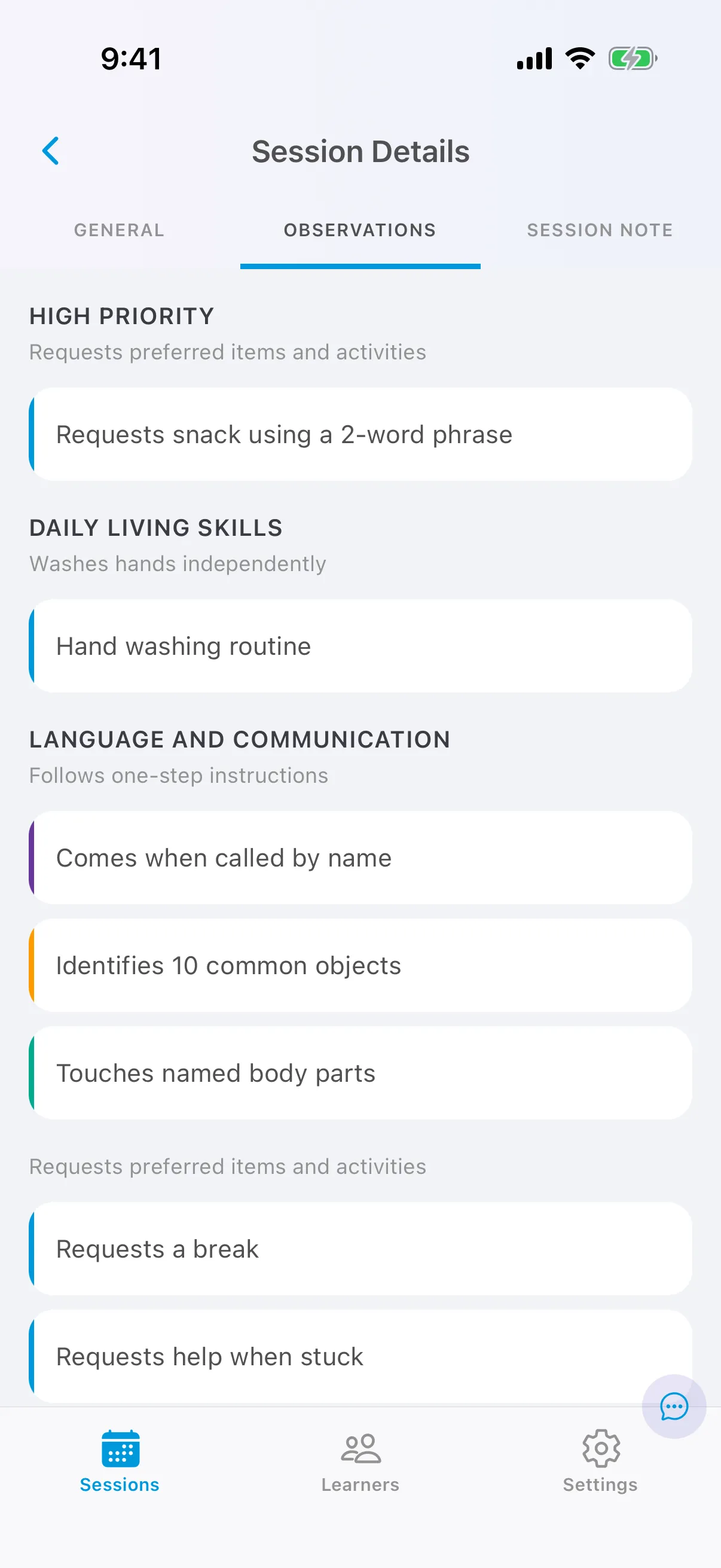
How the list is organized
Section titled “How the list is organized”- High priority targets come first.
- Other targets are grouped by domain (for example, Language and Communication), then by goal.
- Problem behaviors are at the bottom.
- The color bar on the left of each target shows its phase: blue for Active, orange for Baseline, green for Maintenance, purple for Generalization. See Target phases.
Only targets that were in Baseline, Active, Generalization or Maintenance when the session started appear here. A target your BCBA starts after the session began won’t show up until they adjust its start date.
The header shows how many goals, targets and behaviors you have collected data on, and how much time is left in the session.
Collect data on the list
Section titled “Collect data on the list”On a phone or tablet, swipe a target or behavior left to start it without opening its card:
- For a count target or behavior, swipe and tap Count to record the first one.
- For other targets, swipe and tap Start. A percent-correct target shows Yes and No on its row, and a duration target starts its timer.
Once a target has data, swiping left shows Undo, which removes the last trial or count.
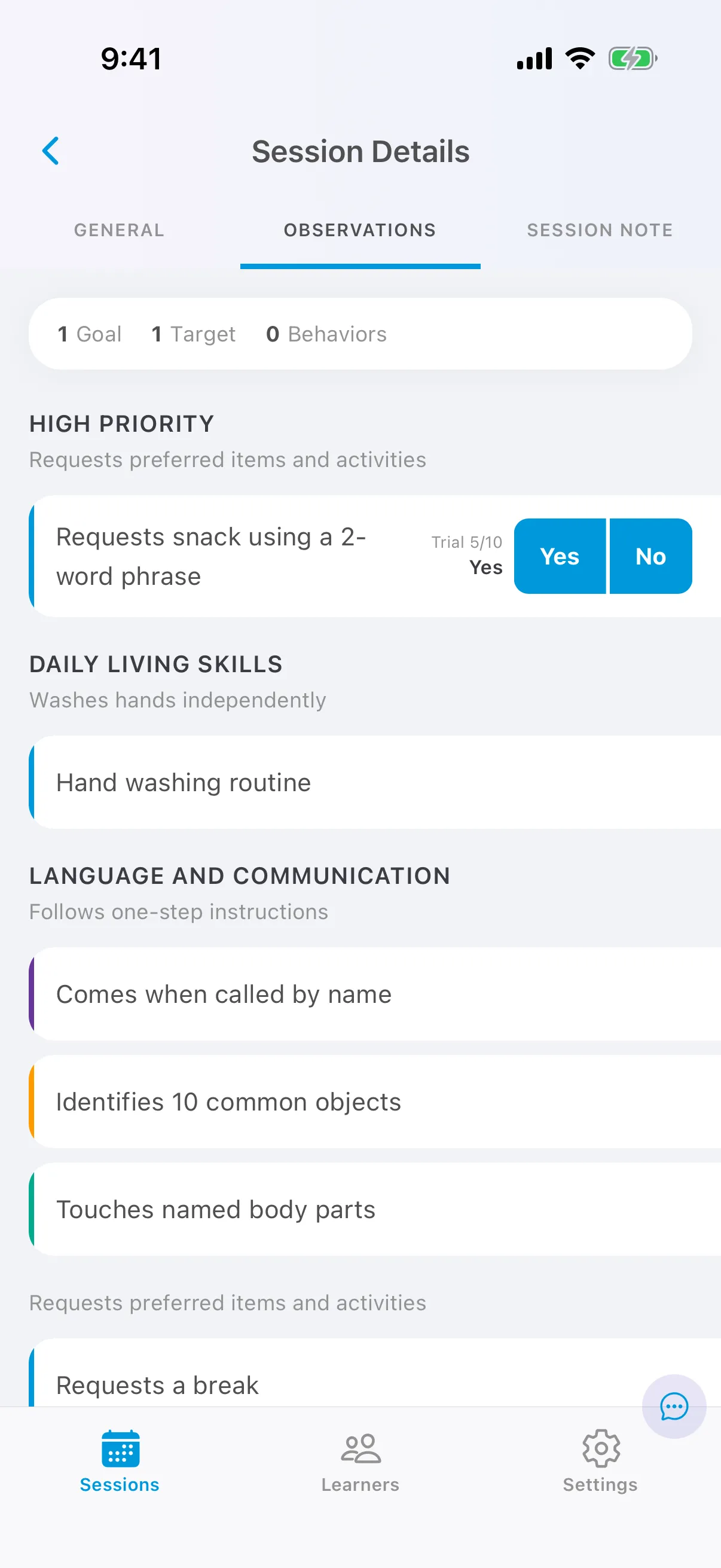
After a target is started, its row shows the trial count and last response, with quick buttons:
- Yes and No for percent-correct targets,
- Add count for count targets,
- a timer for duration targets.
On the target card
Section titled “On the target card”Tap a target or behavior on the Observations tab to open its card. Every card has two tabs:
- Observation: where you record data.
- Instructions (for behaviors, Behavior Intervention Plan): what your BCBA wants you to do.
Instructions
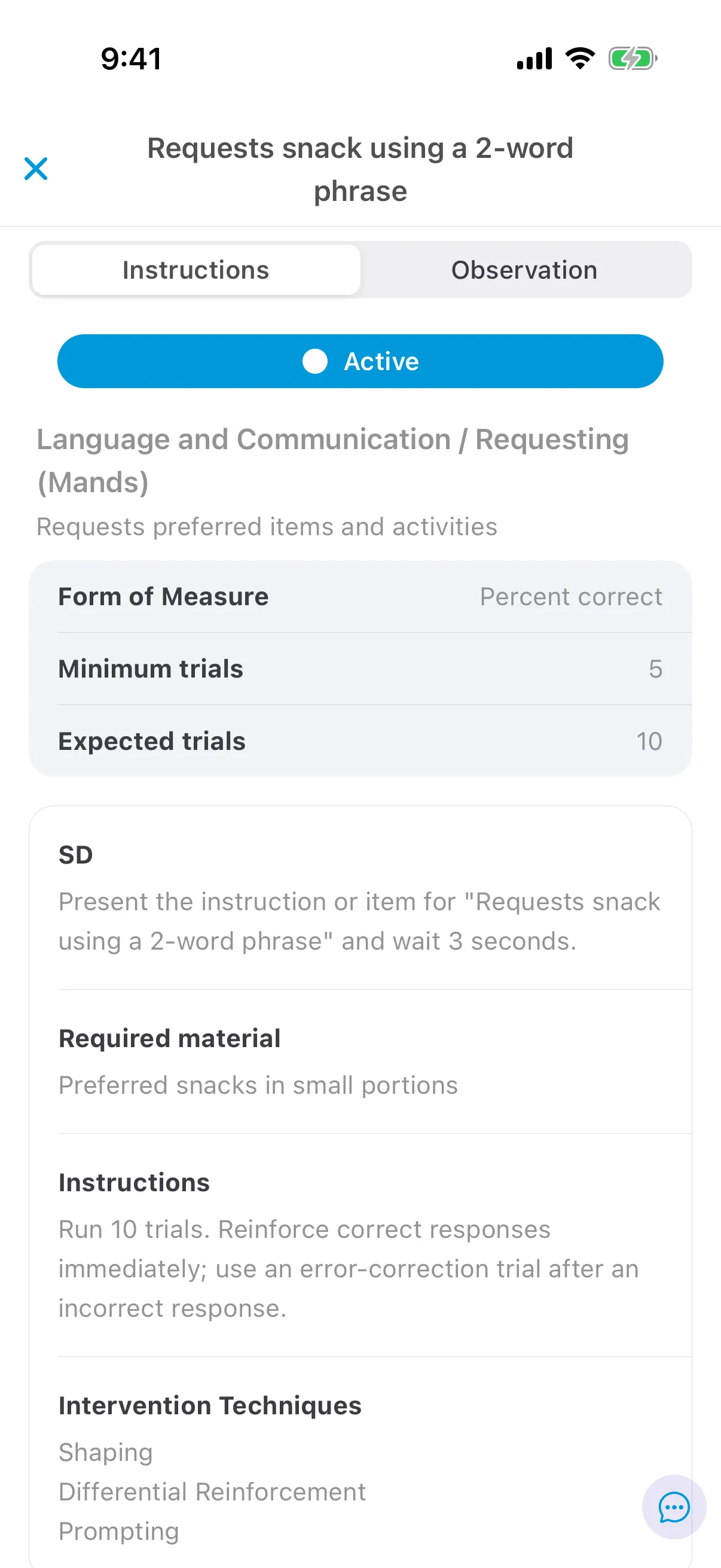
Section titled “Instructions”The Instructions tab shows the target’s phase, form of measure, minimum and expected trials, the SD (discriminative stimulus), required materials, instructions and intervention techniques.
Record data
Section titled “Record data”The Observation tab depends on the target’s form of measure.
Present the SD, then tap Yes for a correct response or No for an incorrect one. Each tap is a trial.
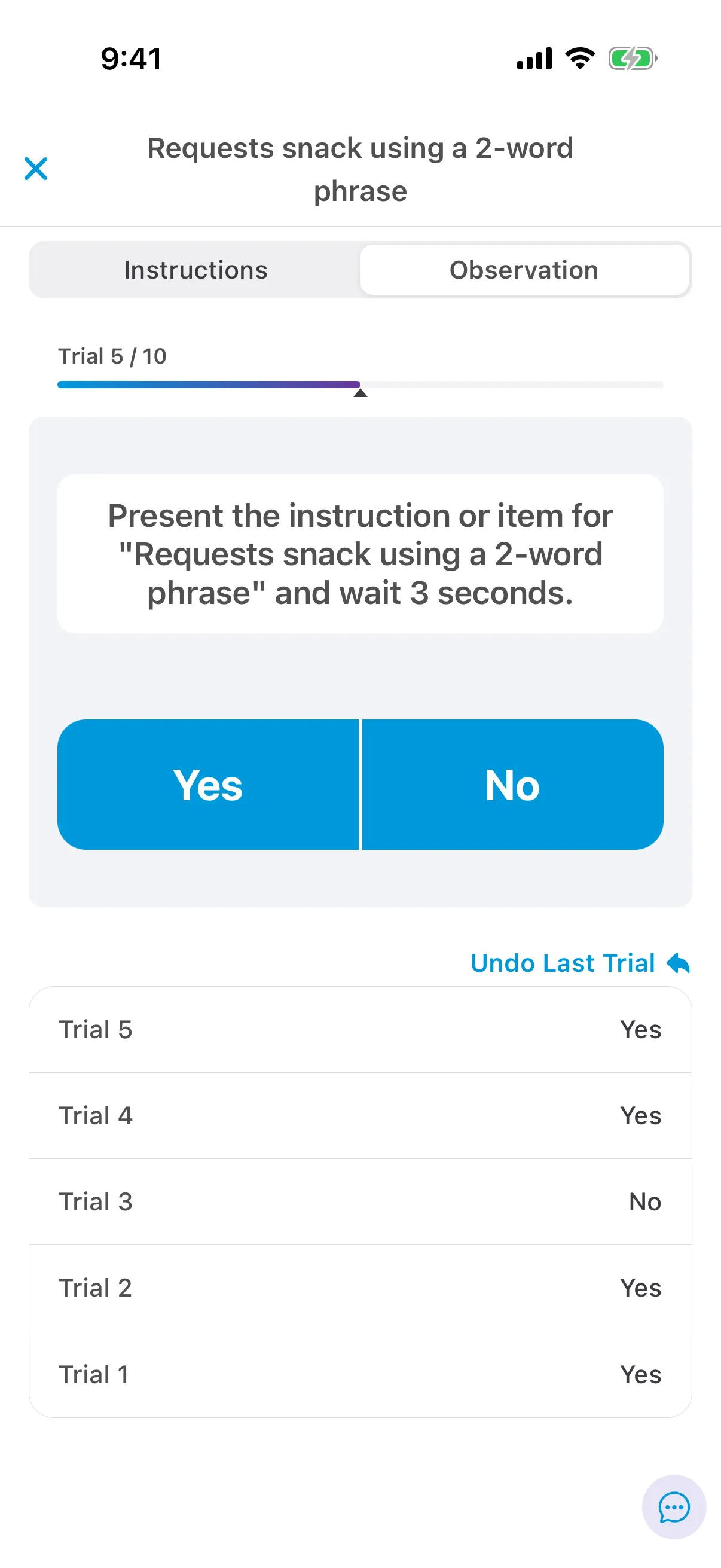
The bar at the top shows your progress toward the expected number of trials. An orange * means you haven’t reached the minimum yet. Tap Undo Last Trial to remove a mistake.
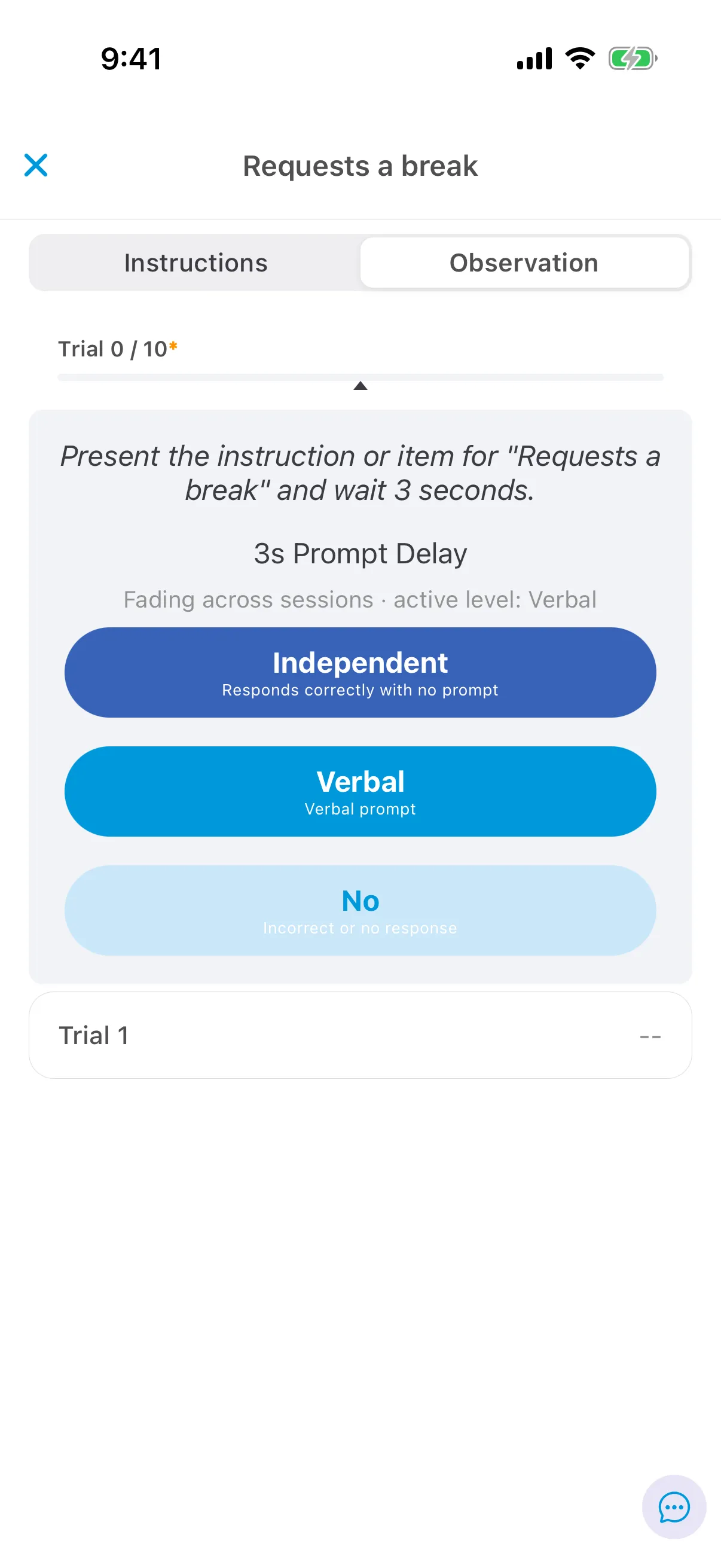
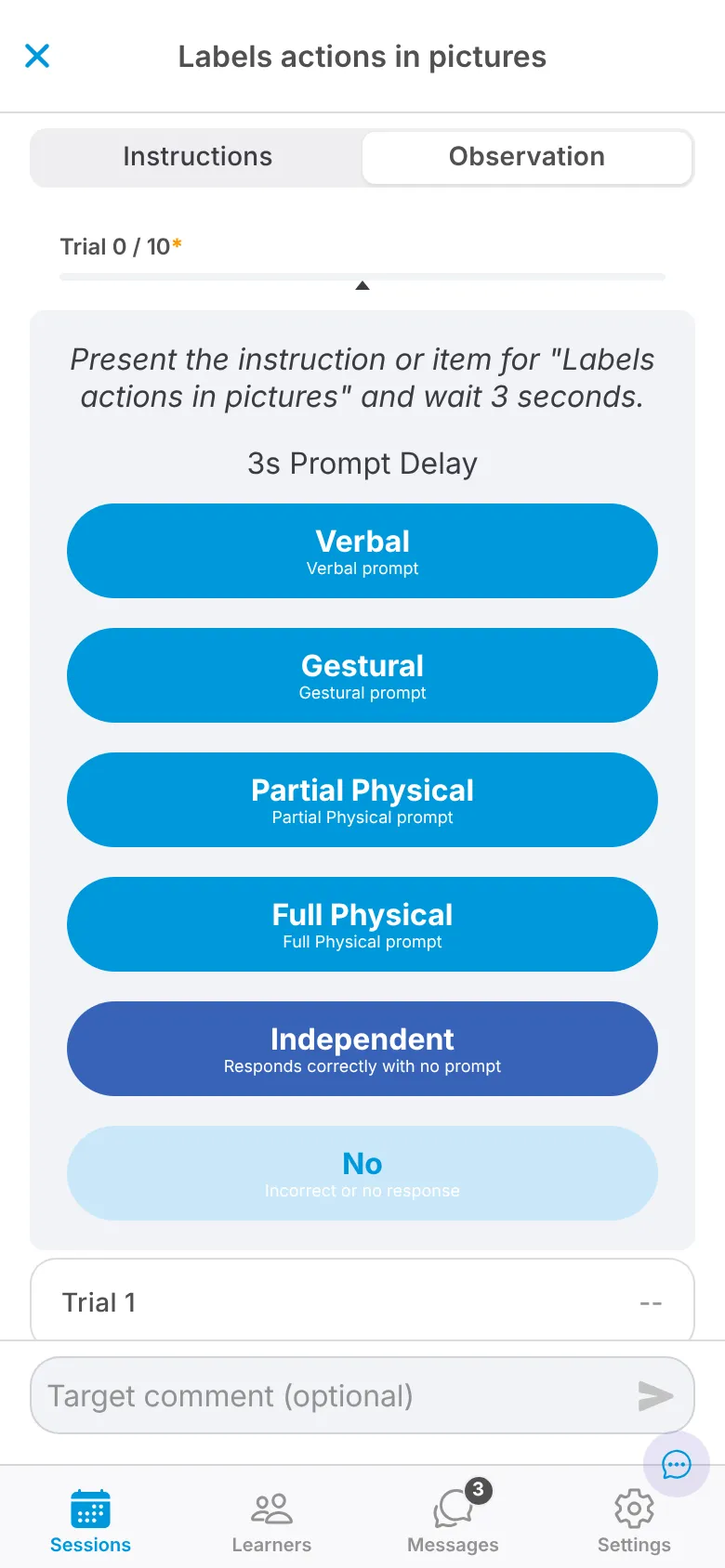
The card shows the prompt delay and the prompt levels to use. How you run a trial depends on how the target fades prompts.
Fading across sessions: the card shows the active prompt level, Independent and No. Prompt at the active level if the learner needs it, then tap Independent, the active level, or No. When auto-fade is enabled, Note advances to the next level once the configured criteria are met; otherwise, your BCBA fades it manually.
Fading within trials: the card shows every prompt level in order, then Independent and No.
- Present the SD and wait for the prompt delay. If the learner responds correctly without help, tap Independent.
- Otherwise, prompt with the first level. If the learner still doesn’t respond correctly, move down to the next level, until they do.
- Tap the level that got the correct response, or No if none did.
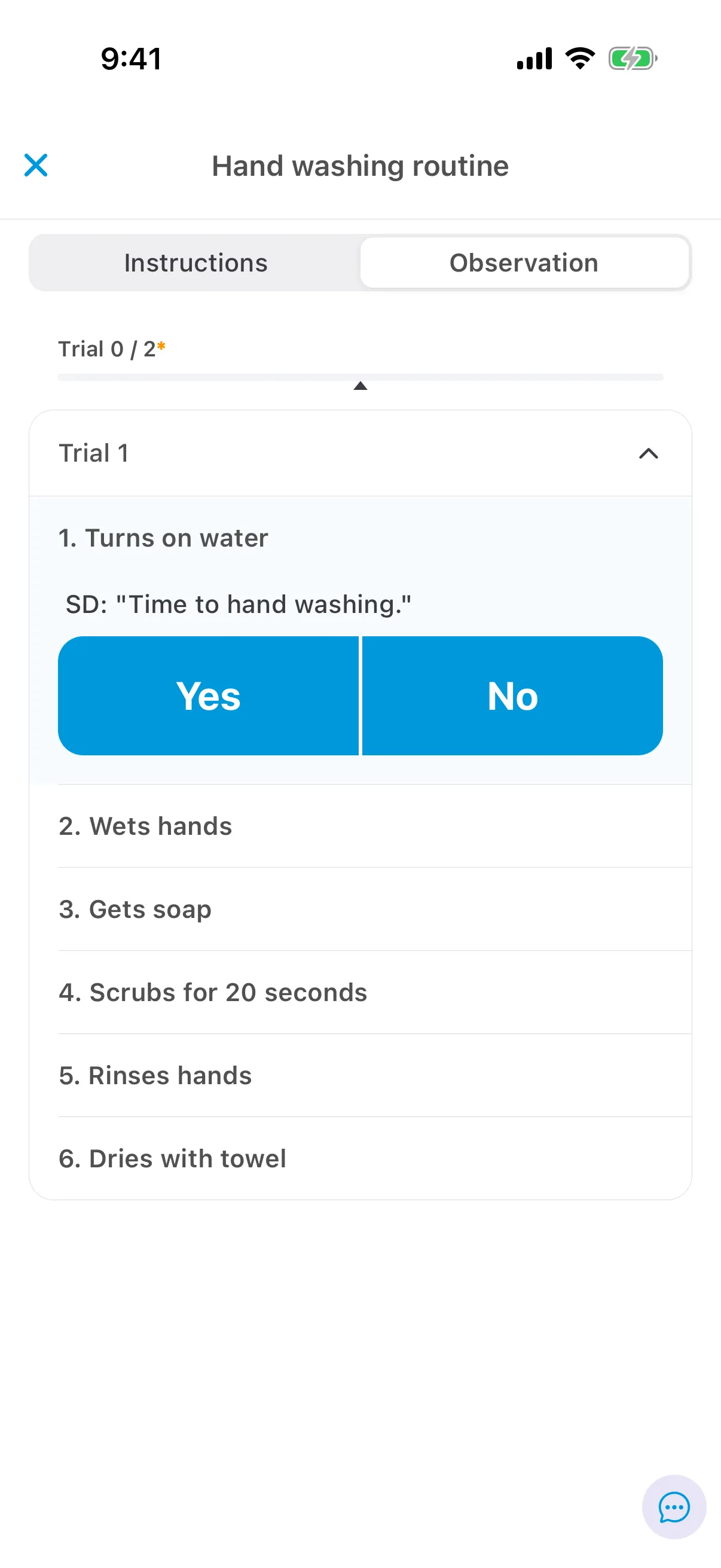
Each trial is a list of steps. Tap Yes or No for each step as the learner completes it. A trial counts once every step has data.
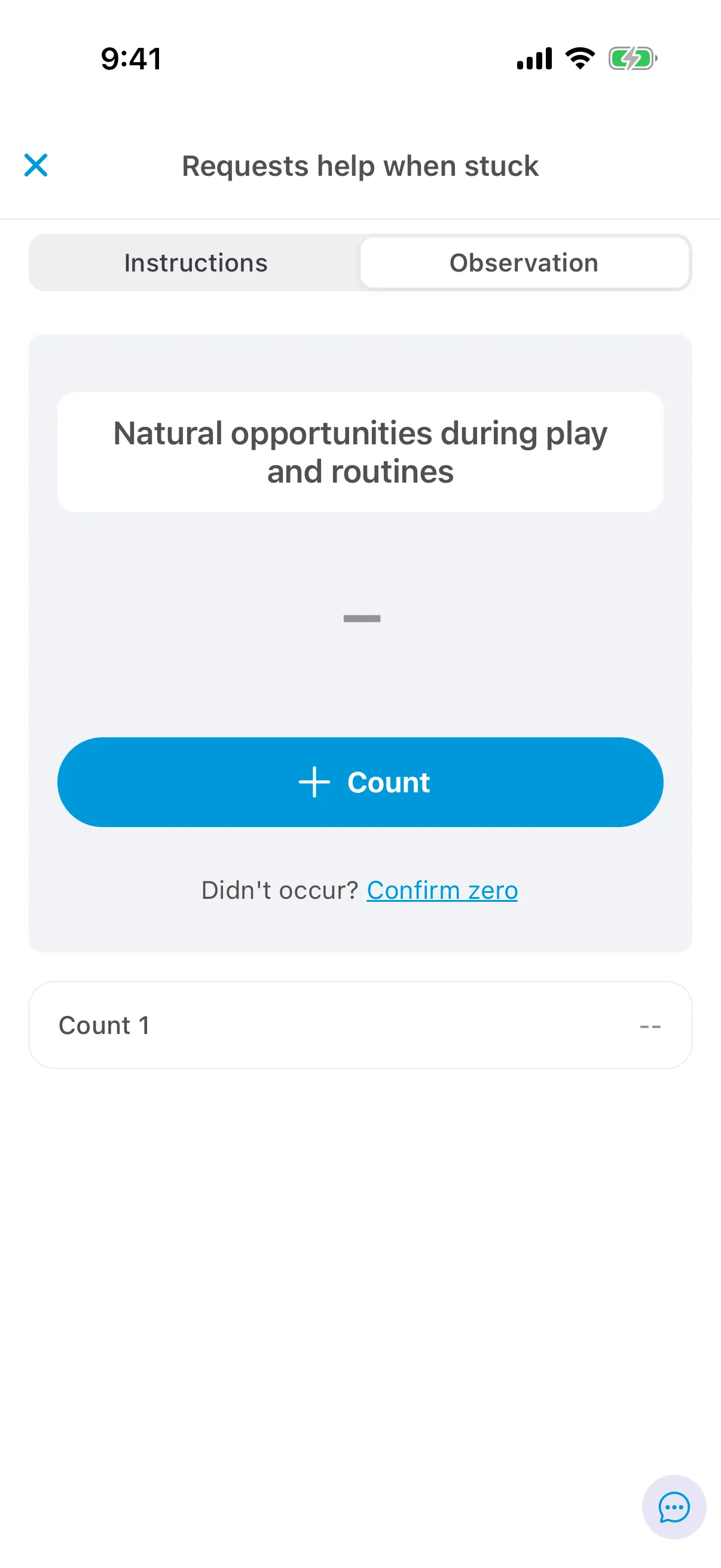
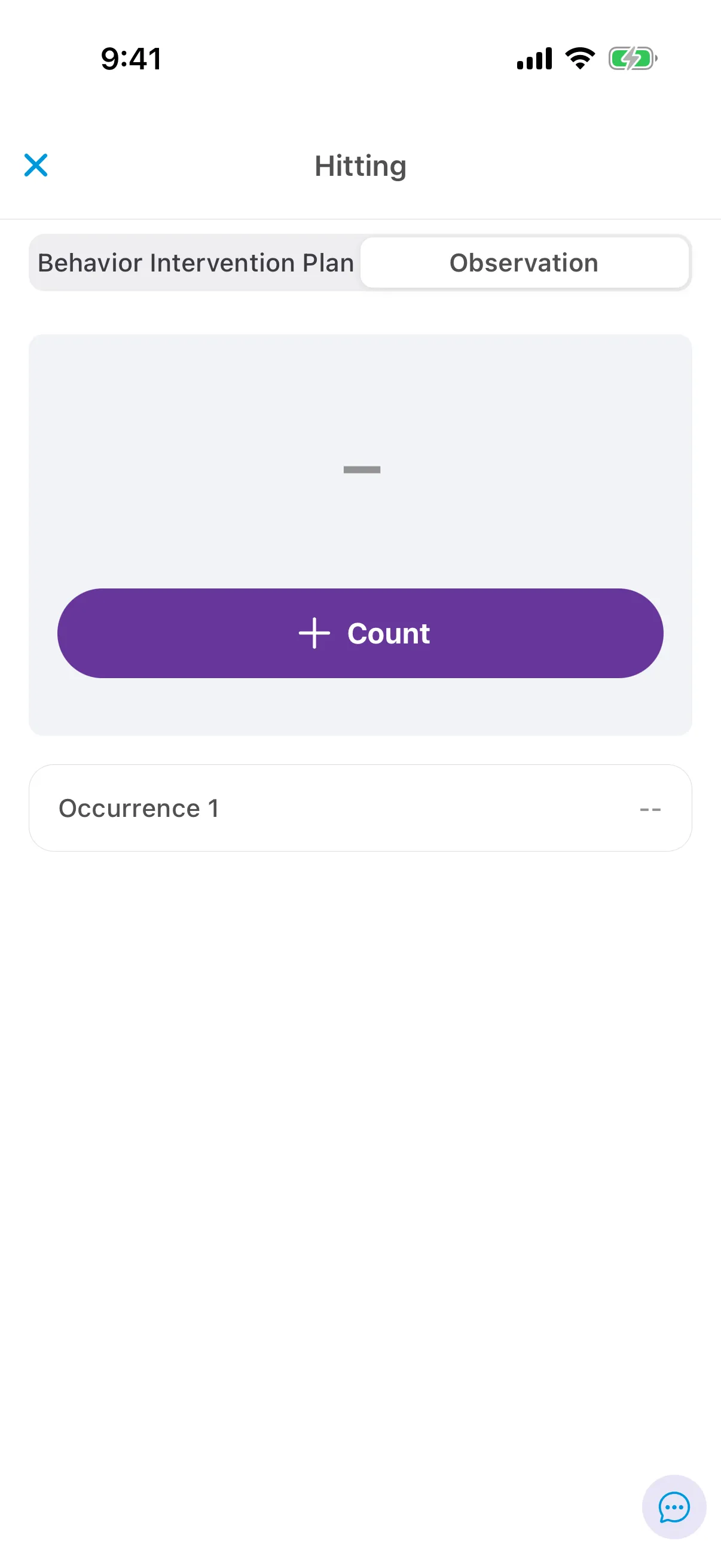
Tap Count each time the learner demonstrates the skill. If it didn’t happen during the session, tap Confirm zero.
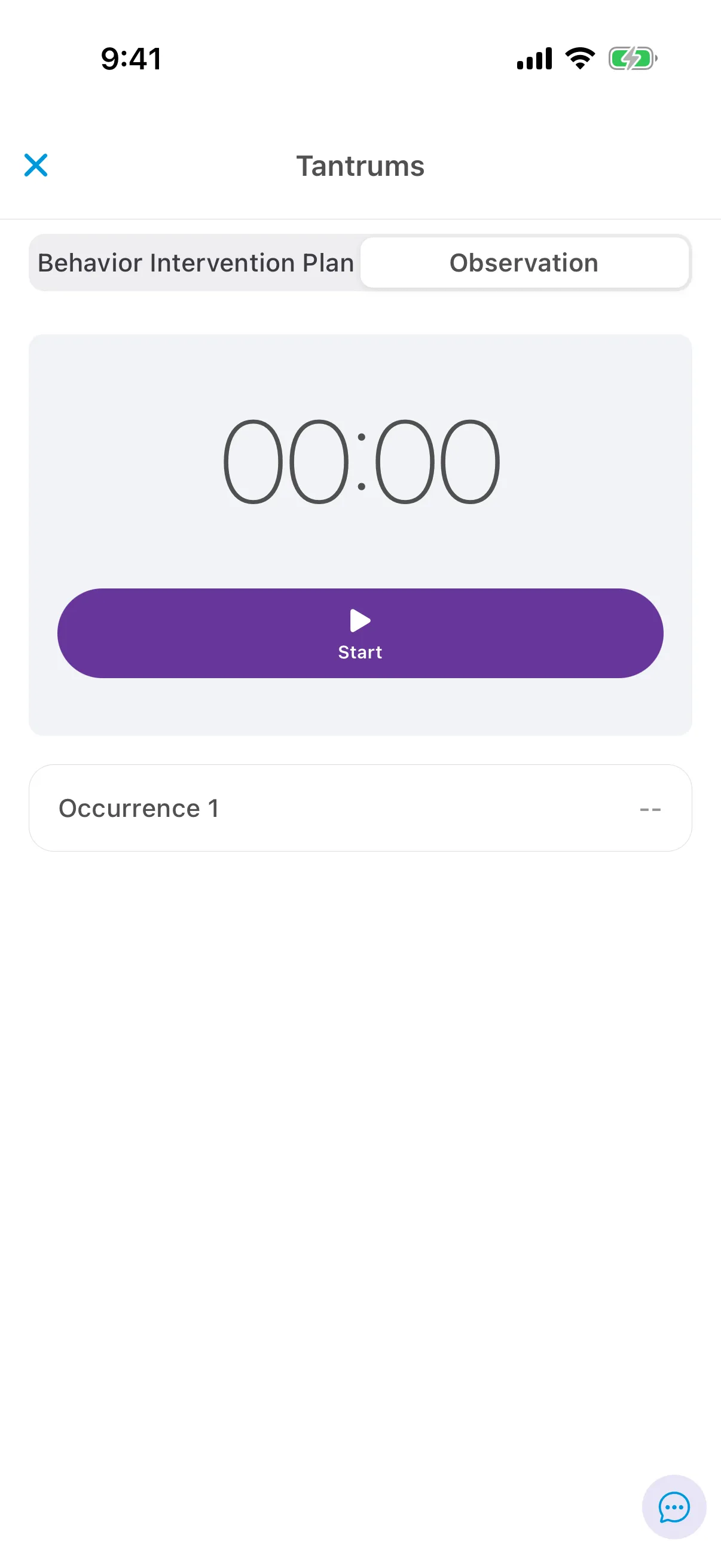
Tap Start when the behavior begins and stop the timer when it ends. Each start and stop is one occurrence. You can pause and resume.
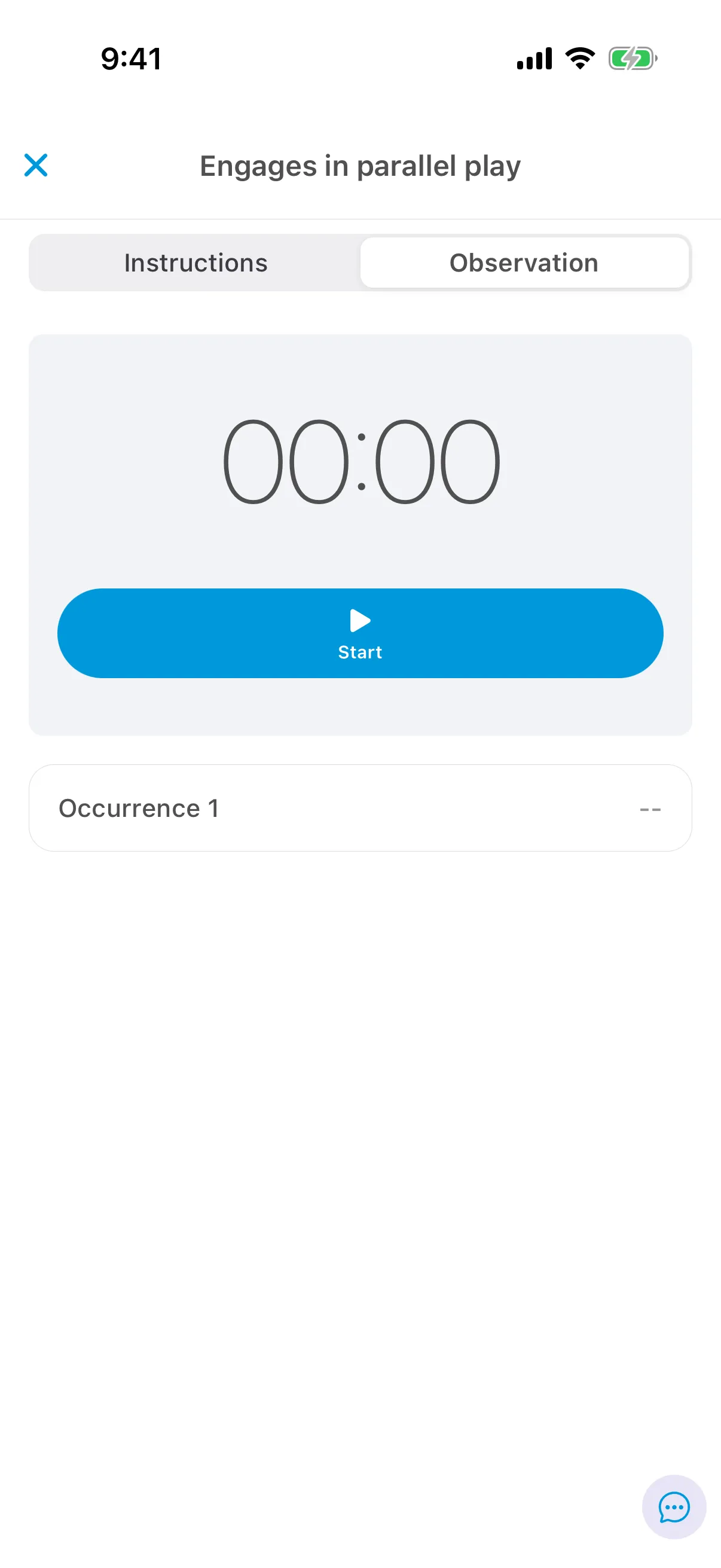
Behavior cards work the same way, in purple: Count for frequency, a timer for duration, and for rate, a count over the session or over an observation period.
See Forms of measure for how each type is scored. Target comments, an upcoming feature that is not turned on yet, will add a comment box at the bottom of the card for writing down something you noticed about the target.