

Edit and remove care plan items
Adjusting the care plan as data comes in keeps sessions focused on what the learner needs now. You can edit anything on the care plan. You can remove a target or objective only while it has no data, or baseline data only. Removing one also deletes its baseline data; to keep that history, deactivate it instead.
Edit a goal: open the goal and tap Edit.
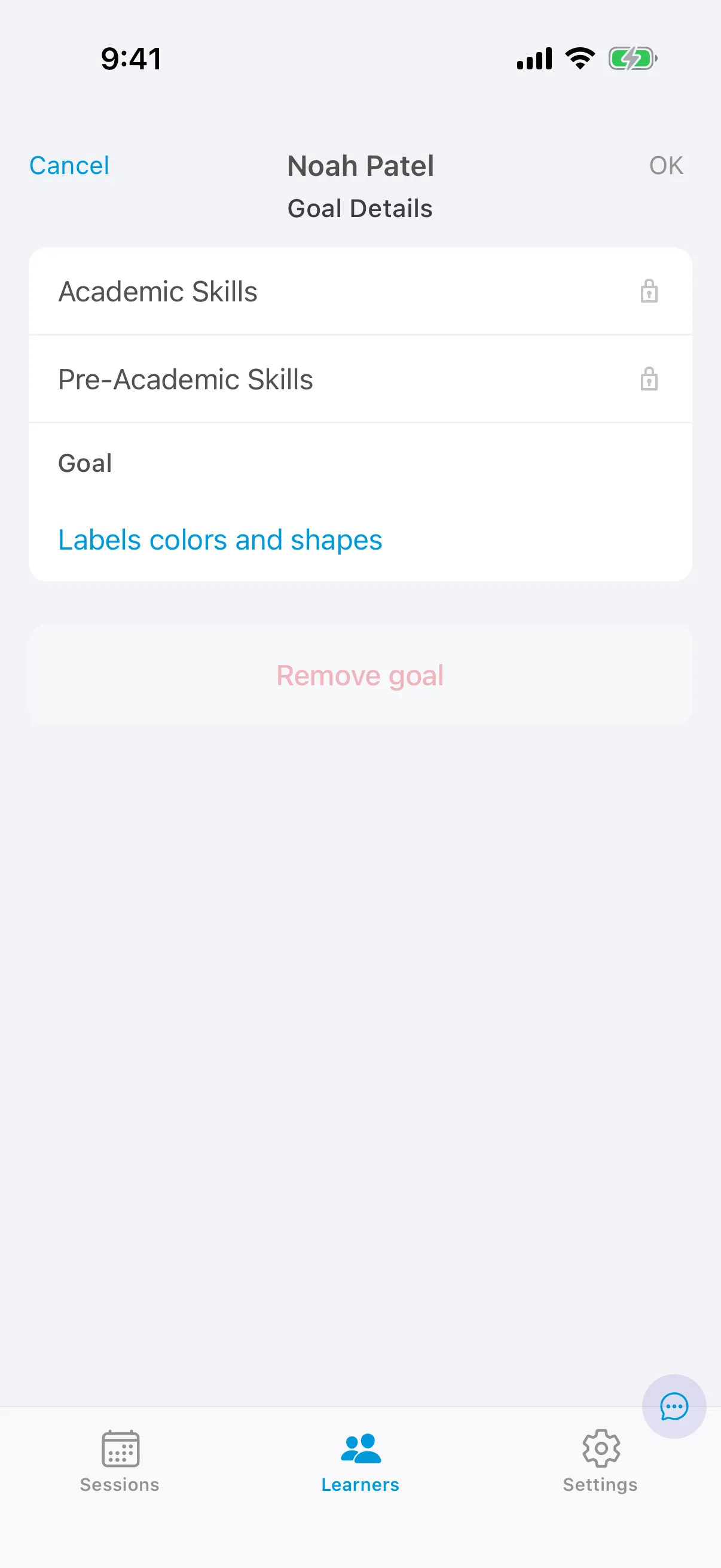
Remove a goal:
- Open the goal and tap Edit.
- Tap Remove goal and confirm.
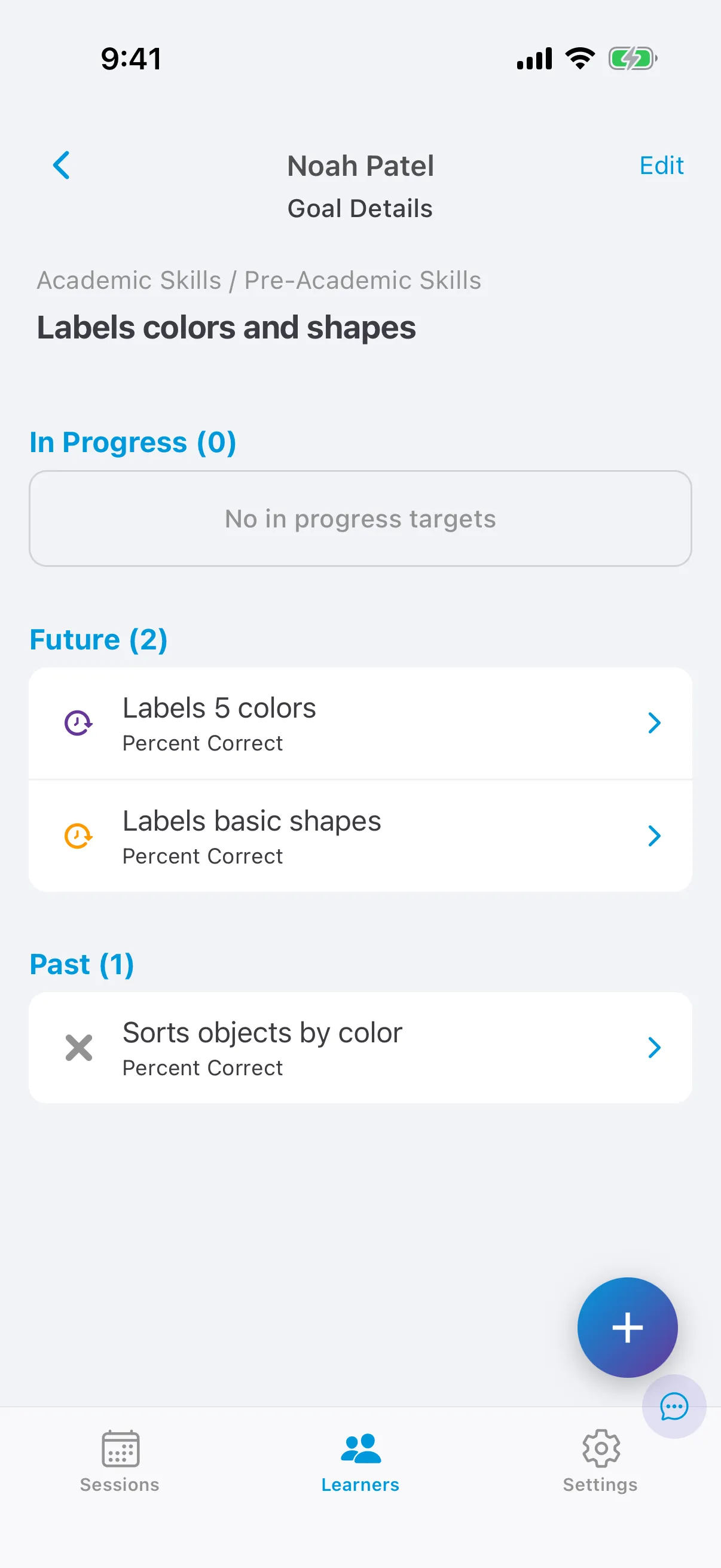
You can remove a goal only when it has no targets, so remove its targets first. If any target can’t be removed, neither can the goal; deactivate its targets instead. A goal whose targets are all deactivated moves to the Past tab.
Targets
Section titled “Targets”Edit a target:
- Open the target and tap the Configuration tab.
- Tap Edit.
- Change the fields you need, then save.
Common edits:
- Rename the target: change the target name. See Names over the character limit.
- Change who collects data: change Assign to. New targets are assigned to everyone on the learner’s care team.
- Change the form of measure: possible only before any data is collected, to keep existing data accurate. If the target has data, clone it and change the form of measure on the copy.
Remove a target:
- Open the target and tap Edit.
- Tap Remove target and confirm.
You can remove a target only if it has no data other than baseline data, and it isn’t Mastered or Deactivated. Removing it deletes any baseline data it has. Otherwise, or to keep its baseline data, change its phase to Deactivated.
Names over the character limit
Section titled “Names over the character limit”Your organization sets a character limit for goal, target and behavior names. A name saved before the limit was lowered, imported from another app, or created by cloning a target (the copy is named like Original name_Copy1) can be longer than the limit. You can still edit it:
- Open the name for editing: rename the goal, target or behavior, or edit it in the behavior’s details.
- Delete characters until the name is as short as you want it.
- Type the new text.
While you edit, the name can be as long as your organization’s limit or as long as it was when you opened it, whichever is longer, so you can delete a few characters and retype them. It can’t grow past that. Once you save a shorter name, the limit for the next edit is that shorter length, or your organization’s limit if the name is now under it.
This also applies to the behavior name when you rename a behavior in an ABC observation.
Behaviors
Section titled “Behaviors”Edit a behavior: open the behavior, tap Edit, change the fields and save.
Remove a behavior: open the behavior, tap Edit, then Remove behavior, and confirm. You can remove a behavior only once it has no objectives, so remove its objectives first. If any objective can’t be removed, deactivate the objectives instead. A behavior whose objectives are all deactivated moves to the Past tab.
Objectives
Section titled “Objectives”Edit an objective: open the behavior, tap the objective, tap Edit, change the fields and save.
Remove an objective: open the objective, tap Edit, then Remove objective, and confirm. You can remove an objective only if it has no data other than baseline data, and it isn’t Mastered or Deactivated. Removing it deletes any baseline data it has. Otherwise, or to keep its baseline data, deactivate it.