

Sign in and set your PIN
You create your own Note account with your work email: the email address your organization has on your provider record. Your organization gives that email access to its data. There is no invite code.
Sign in for the first time
Section titled “Sign in for the first time”-
Open Note and tap Create Account. Enter your work email and choose a password.
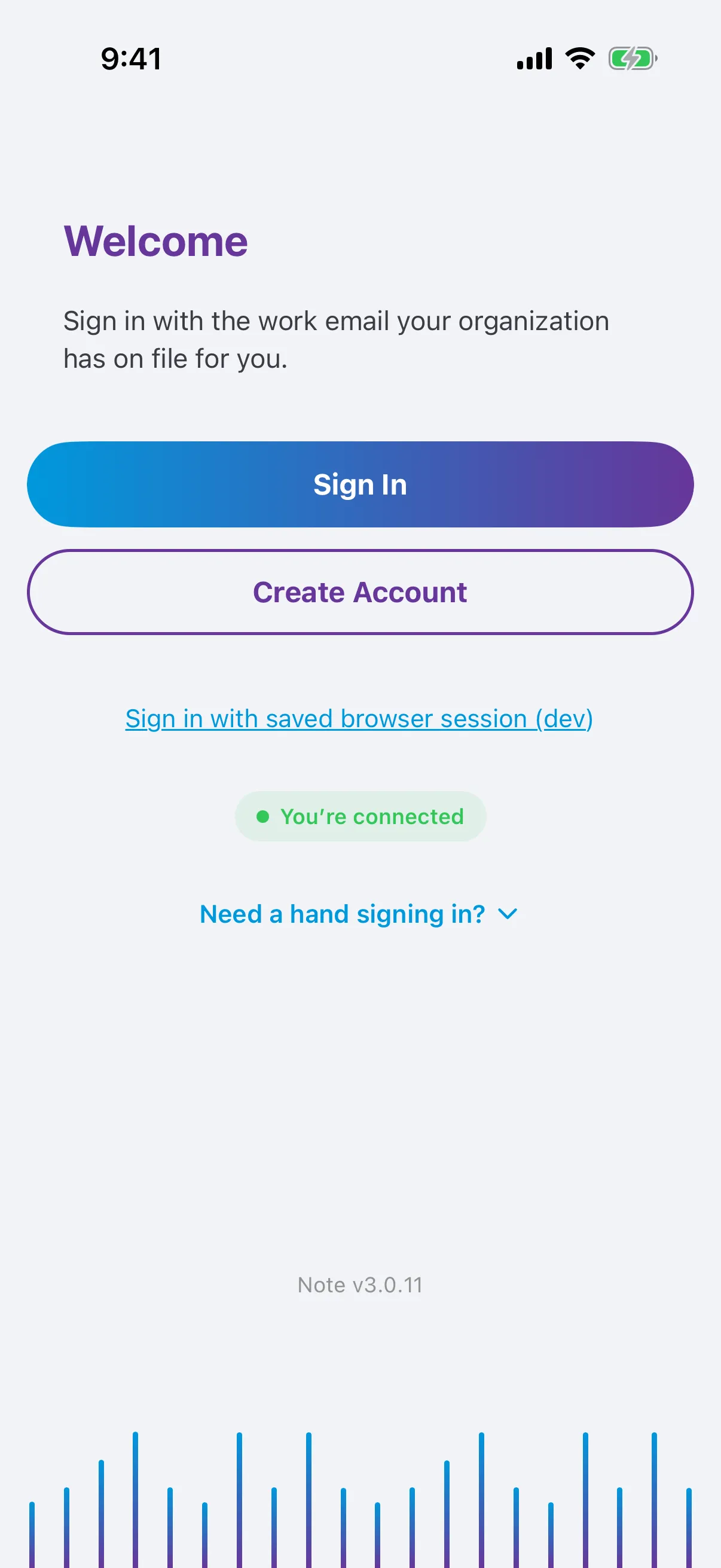
Rather not set a password? Choose Google, Microsoft or Apple instead, and pick the account that uses the same work email.
-
Note emails you a link. Tap it to verify your email. Can’t find it? Check Junk or Spam.
-
Come back to Note and tap Sign In with the same email.
-
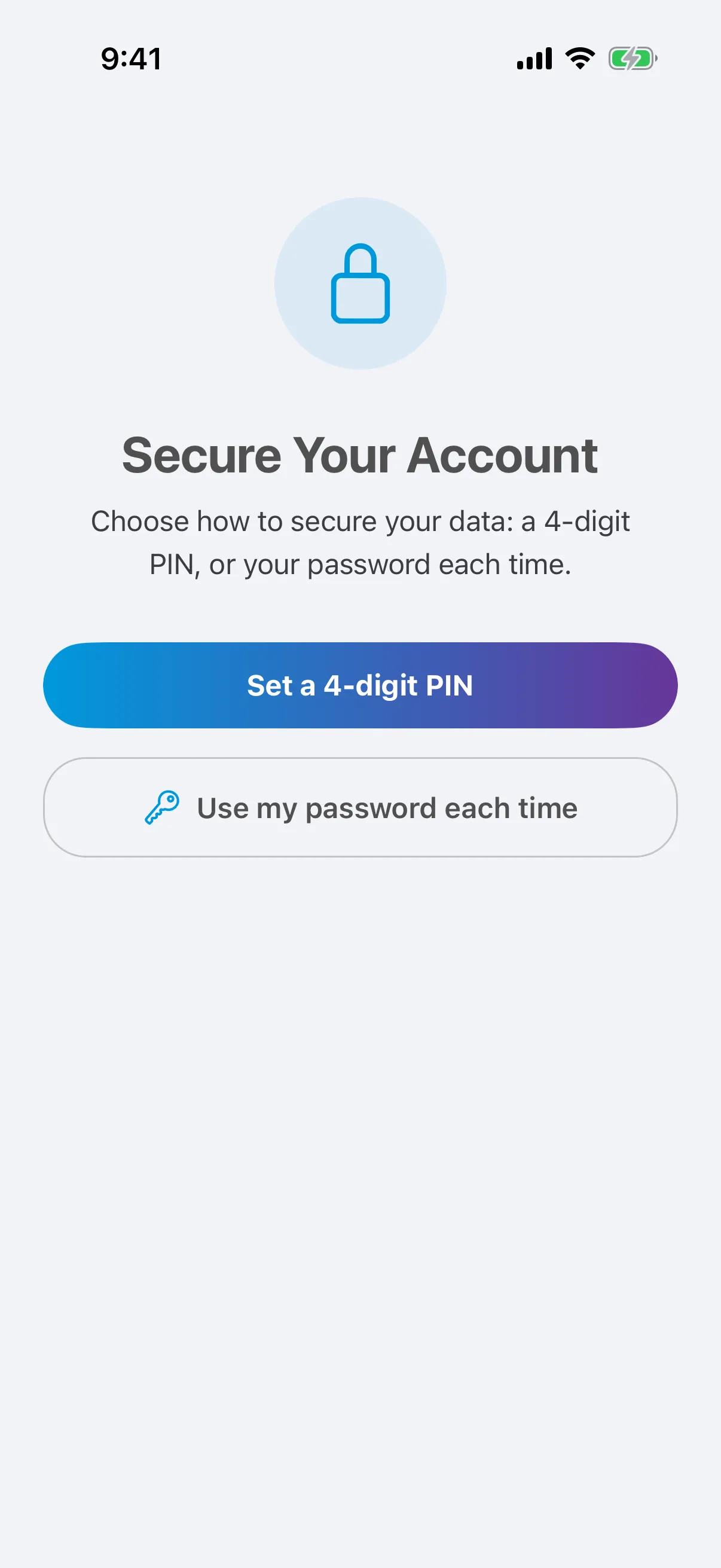
Choose how to secure Note on this device:
- Set a 4-digit PIN to unlock Note quickly, or
- Use my password each time.
-
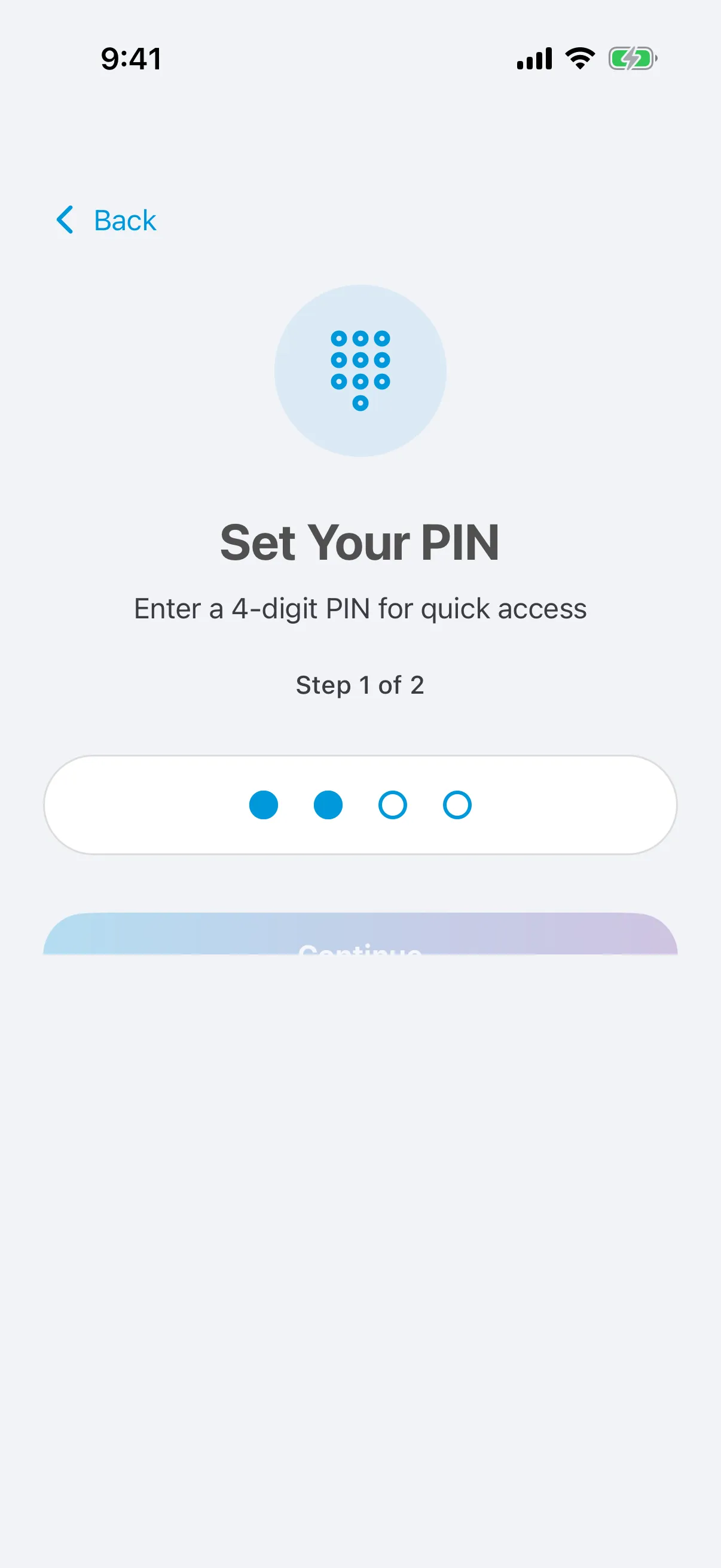
If you chose a PIN, enter 4 digits, then enter the same 4 digits again to confirm.
-
Note downloads your organization’s data. This can take a minute the first time. When it finishes, you’ll see any sessions your organization already scheduled for you.
Unlock Note
Section titled “Unlock Note”Each time you open Note, enter your PIN.
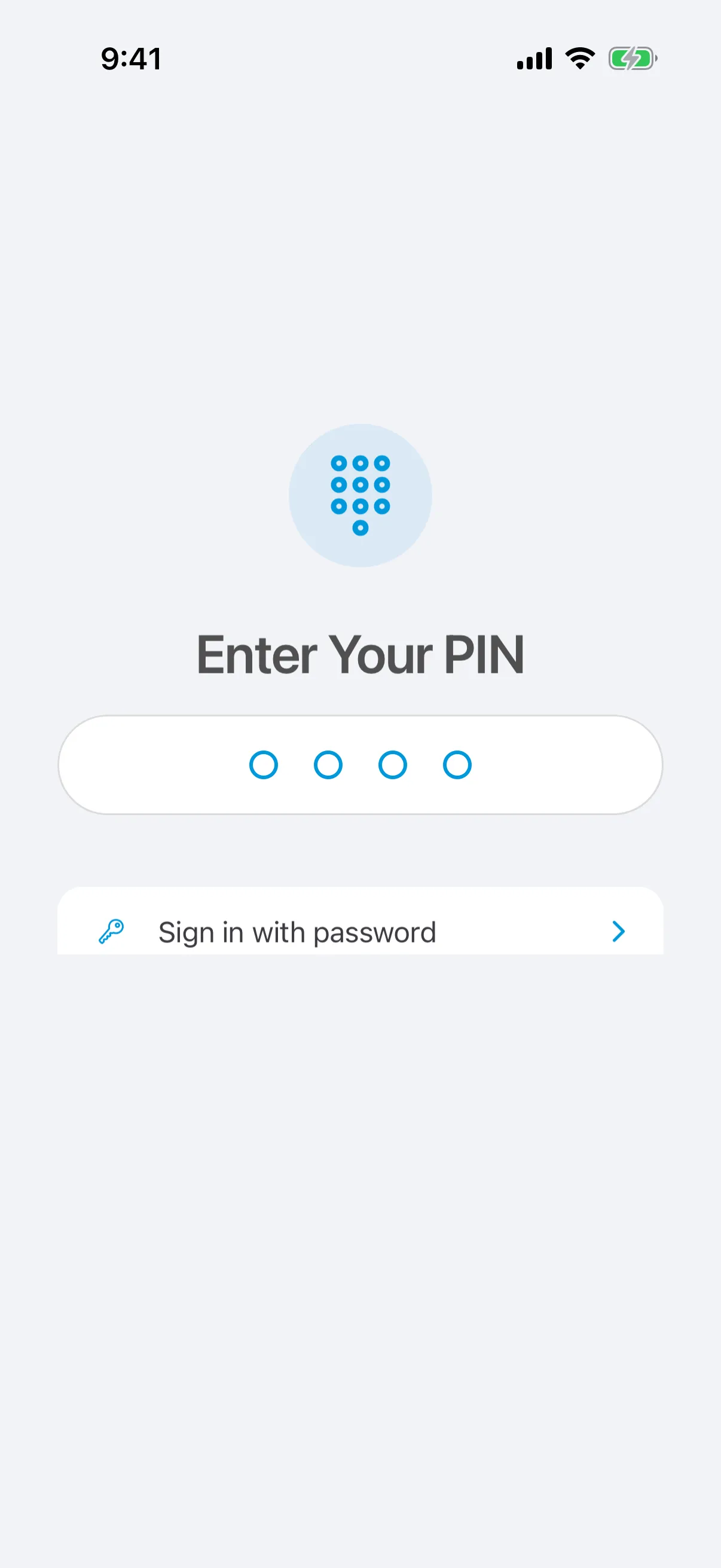
- Sign in with password uses your password instead of the PIN.
- Forgot PIN? signs you in again with your password and then asks you to set a new PIN.
To change your PIN later, see PIN and Face ID.
Reset your password
Section titled “Reset your password”On the sign-in page, tap Forgot your password? and enter your work email. Open the reset email on the same device, set a new password, then sign in to Note again.
If you signed up with Google, Microsoft or Apple, there’s no Note password to reset. Sign in with that same button again.
Use Note on another device
Section titled “Use Note on another device”Install Note on the new device and tap Sign In with the same email and password. Don’t create a second account. Each device has its own PIN.
If you share a device, sign in with your own account. Accounts already on the device are put away, not deleted, and come back when that person signs in again. Don’t sign other people out: signing out deletes anything on the device that hasn’t synced yet.