
Start and end a session
Start a session
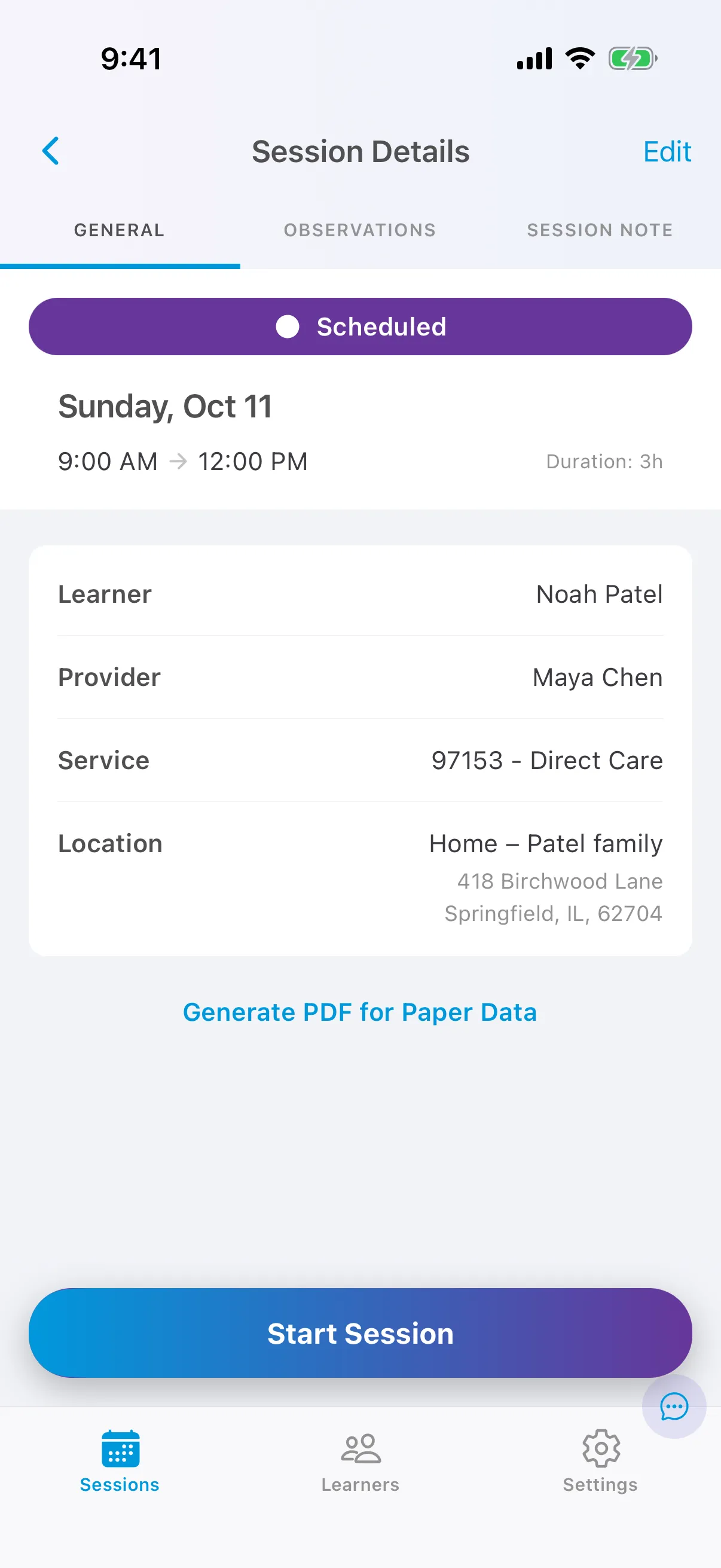
Section titled “Start a session”You can start a direct care session (including group treatment) on the day it is scheduled. Start Session appears on the General tab of your own scheduled sessions for today. Other session types work differently; see Supervision, family training and assessment sessions.
A direct care session dated before today has no Start Session. To add data to your own session, open the Observations tab, choose a target, then tap Observation and Edit. Until the session has data, the General tab reminds you of these steps.
-
Open today’s session.
-
Tap Start Session.
-
Note opens the Observations tab, shows Session in progress, and starts tracking the time left in the session.
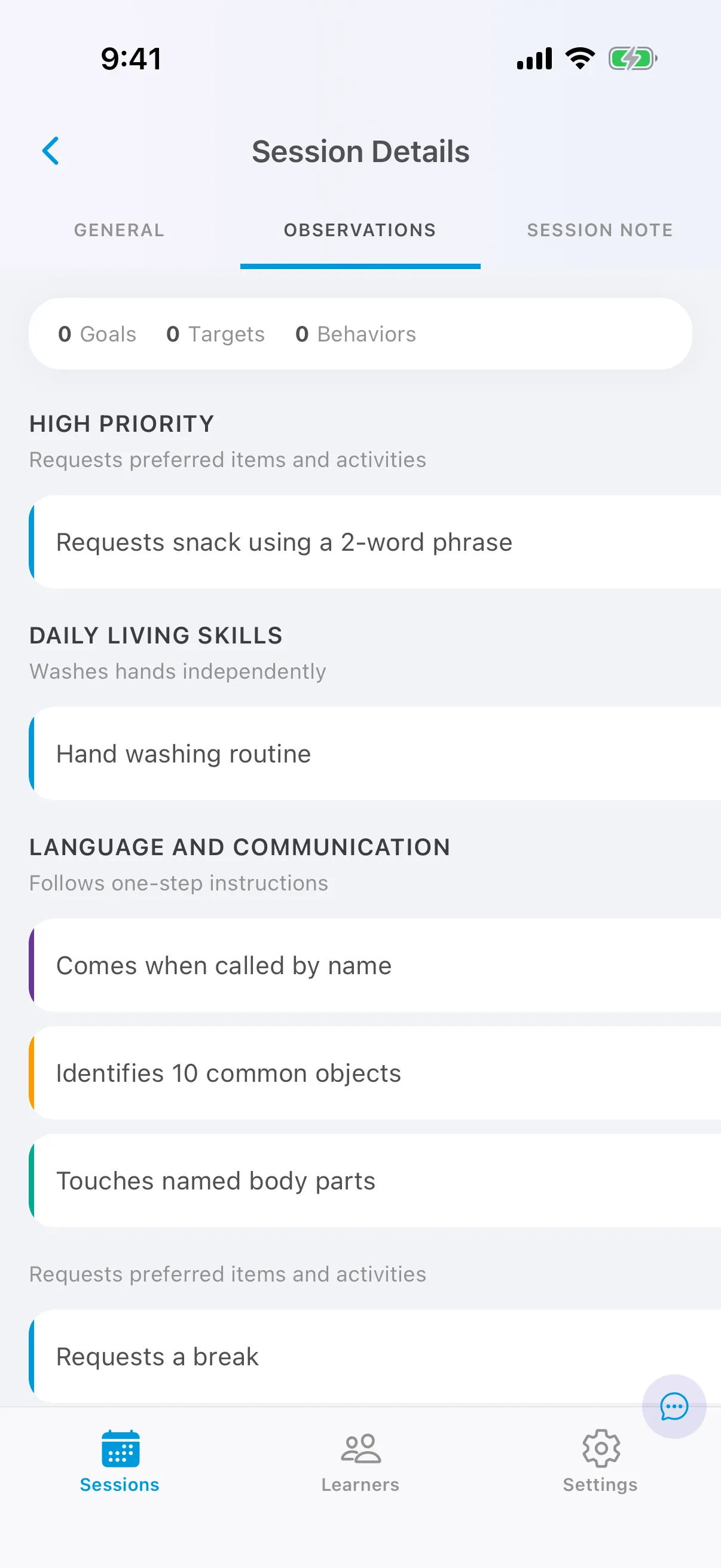
The counters at the top show how many goals, targets and behaviors you have collected data on so far, and the time remaining.
If your organization uses your actual session times
Section titled “If your organization uses your actual session times”Some organizations bill for the time you actually start and end a session, and some require Electronic Visit Verification (EVV) for some services. Your organization sets this up; ask them if you’re not sure.
- Session times: when you tap Start Session, the session’s start time changes to when you tapped it, and when you tap End Session, its end time changes to when you tapped that. If those times differ from the schedule, Note asks you to Confirm Session Time when you submit: tap Confirm, or Edit to correct the times.
- EVV: for sessions that require EVV, usually ones at the learner’s home or in the community, Note records your location when you start and end the session, and the session’s times change to when you started and ended it. Allow location access when Note asks, and tap Confirm Location when Note shows where you are. If Note couldn’t get your location, tap Retry.
If you change a session’s times afterward (open the session and tap Edit), your organization checks the session again. The location Note recorded doesn’t change, and for an EVV session, times that no longer match the ones Note recorded can get the session declined. See Visit not verified (EVV).
Supervision, family training and assessment sessions
Section titled “Supervision, family training and assessment sessions”Sessions that aren’t direct care, such as supervision, family training and assessment, have no Observations tab, because you don’t collect target or behavior data in them. They show Start Session only when the session requires EVV or your organization records your actual session times (see above). Starting and ending one records its times and, for EVV, your location. Otherwise there’s nothing to start: open the session and complete its session note.
Collect data
Section titled “Collect data”Tap a target or behavior to open its card. See Collect data in a session.
End a session
Section titled “End a session”-
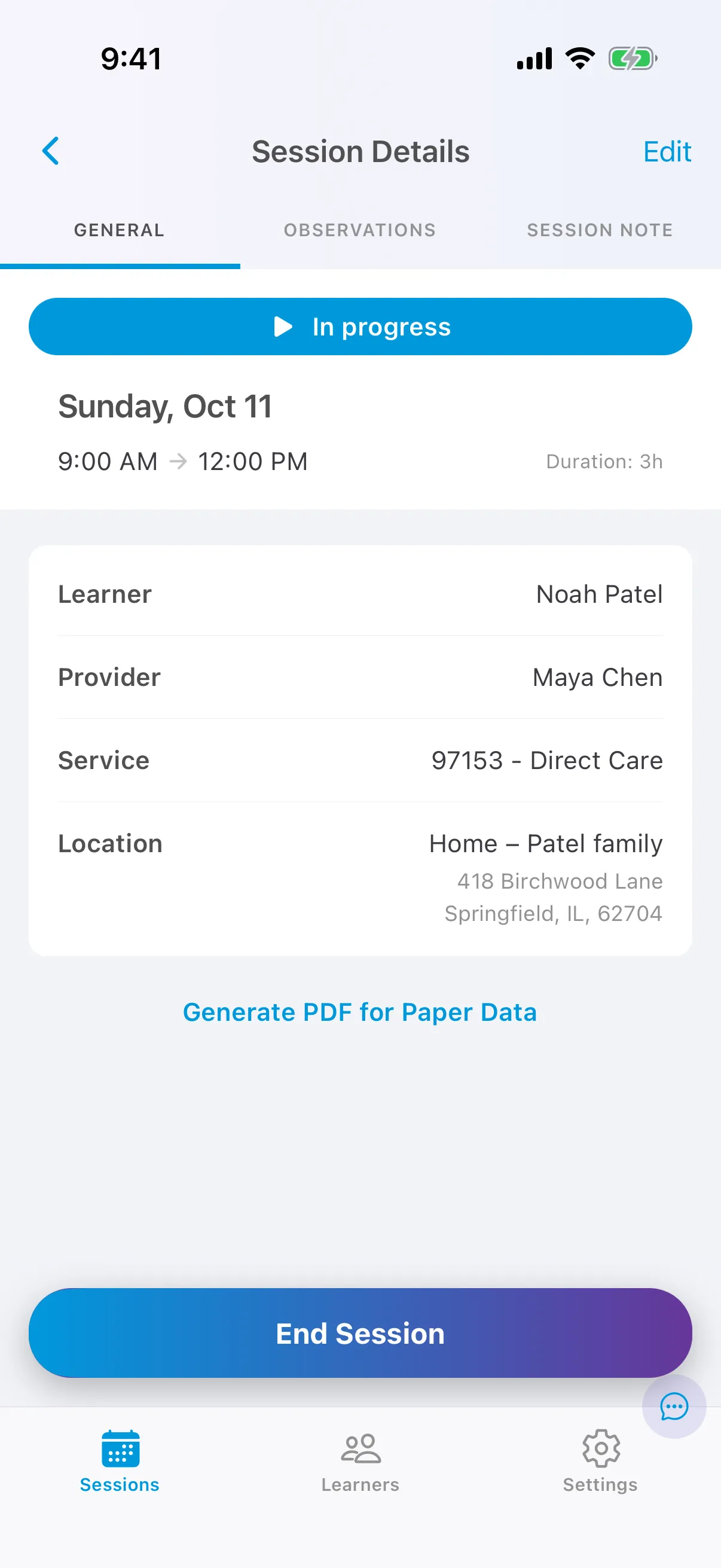
On the General tab, tap End Session.
-
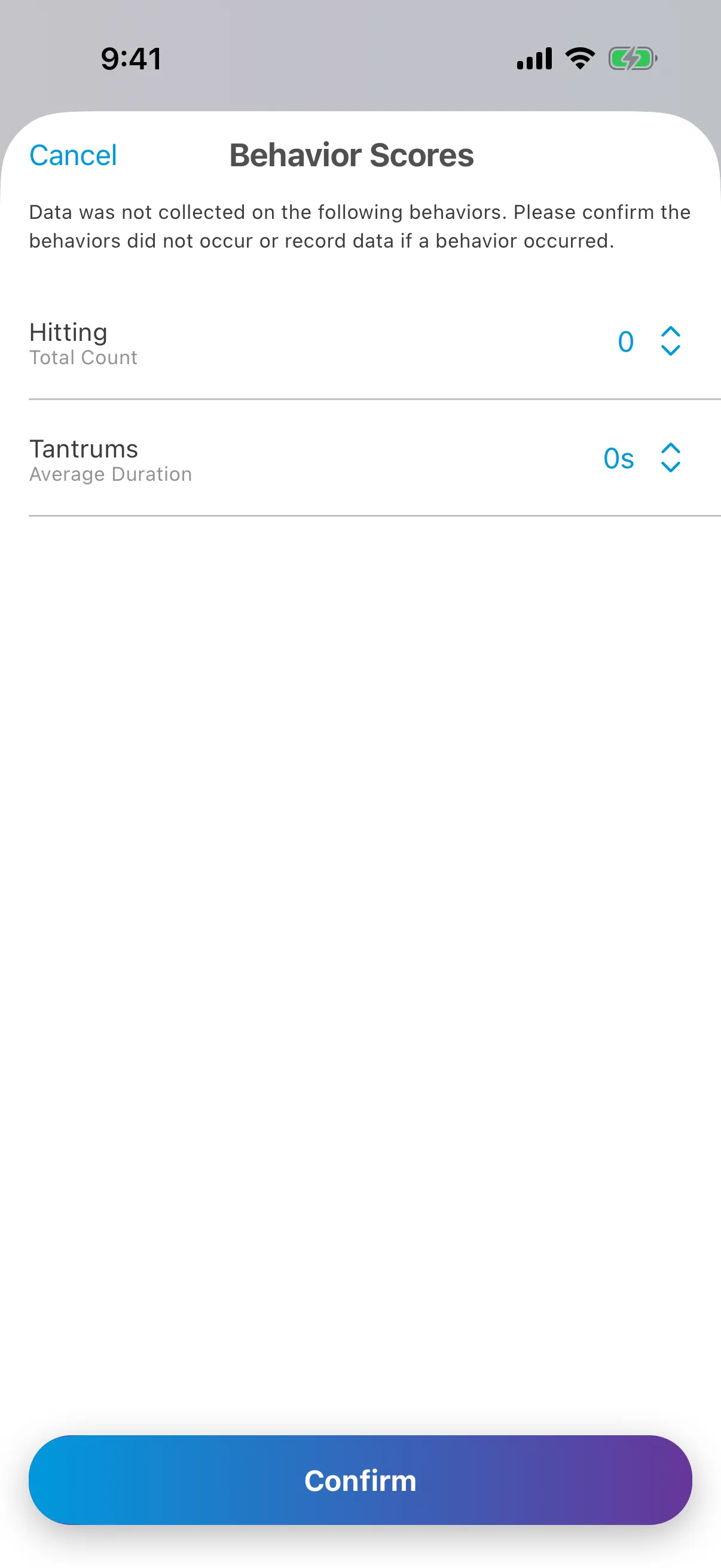
If a behavior on the list had no data, Note shows Behavior Scores: confirm it didn’t happen (a zero), or enter what you observed, then tap Confirm.
-
Complete the session note.
After you end it, the session is Incomplete until it has its note, then Ready to submit.
Leave a session without ending it
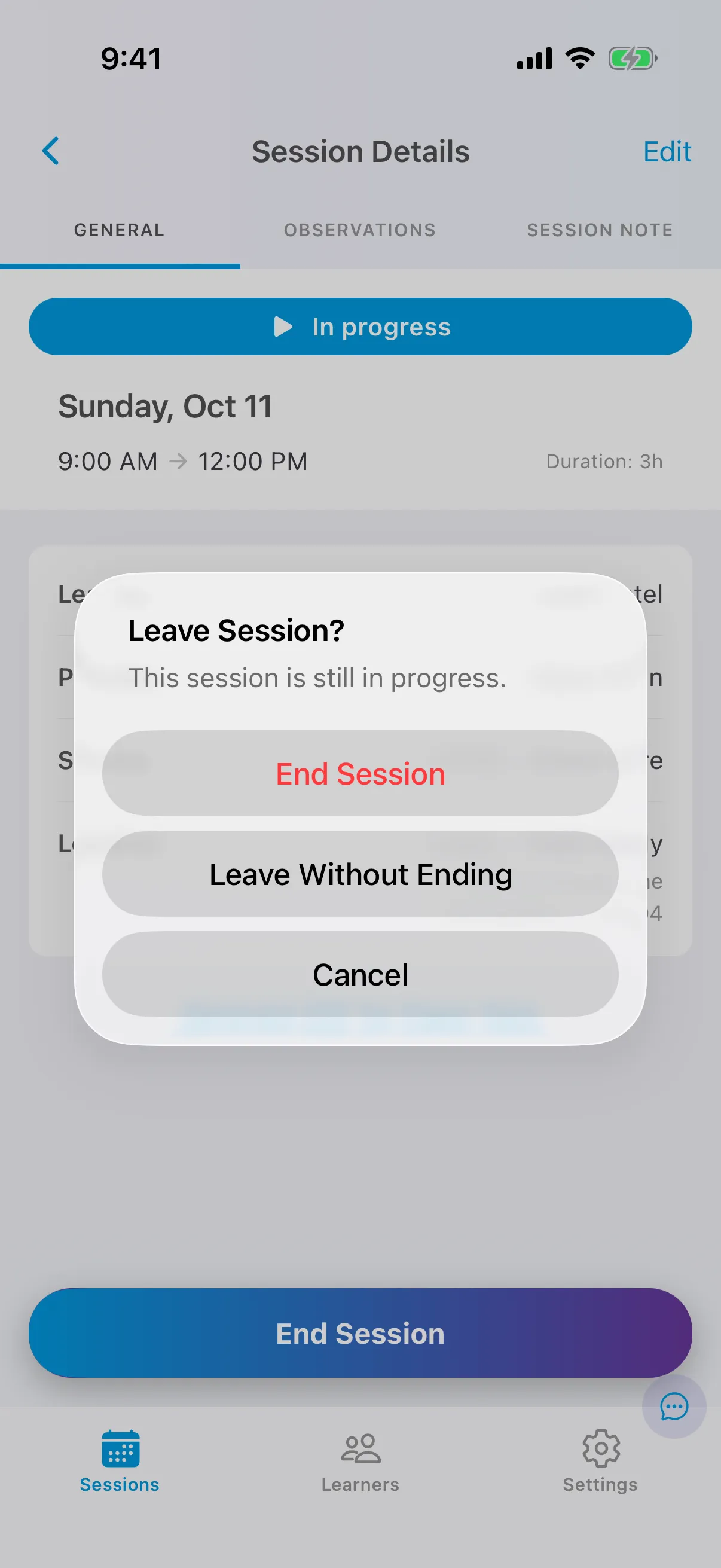
Section titled “Leave a session without ending it”If you go back to your schedule while a session is running, Note asks what to do: End Session, Leave Without Ending (the session keeps running and you can come back to it), or Cancel.