

Activity Report
The Activity Report shows all activity on a learner’s care plan in a date range you choose. Use it to review progress before a supervision visit or a treatment plan update.
Open the Activity Report
Section titled “Open the Activity Report”-
On the Learners tab, open the learner.
-
On the care plan, tap the Views and Filters button (the sliders icon) at the top right and choose Activity Report.
-
Set the Start date and End date, turn Display graphs on or off, and tap Apply.
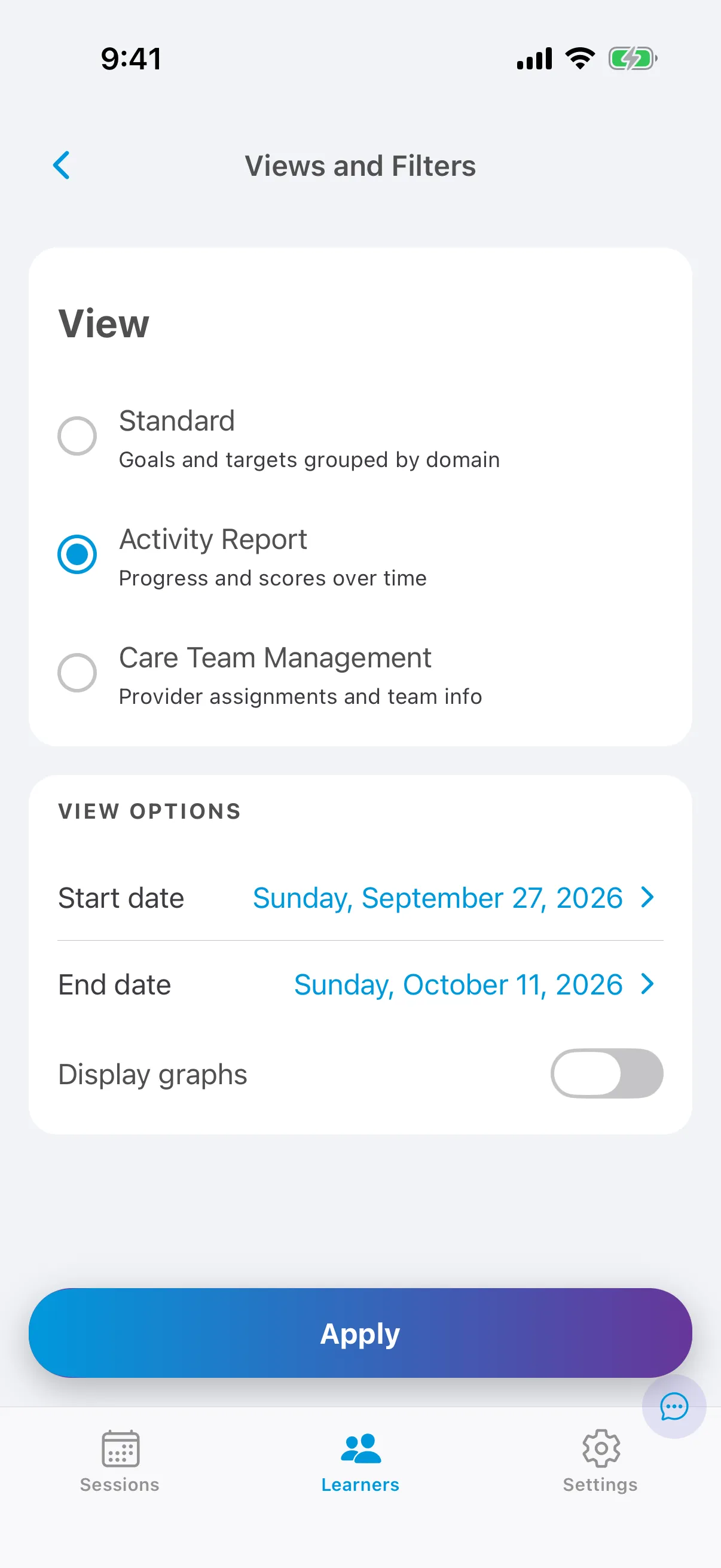
To go back to the normal care plan, change the view to Standard care plan. See Care plan views.
What’s included
Section titled “What’s included”The report covers targets that either:
- had data collected in sessions during the date range, or
- were in Baseline, Active or Maintenance on the last day of the range.
For the date range you see:
- the number of sessions, the number of distinct targets, and the average number of targets per session;
- New targets, Targets in progress and Mastered targets, with the date each target was mastered;
- for each target, how many sessions it was worked on and its average score.
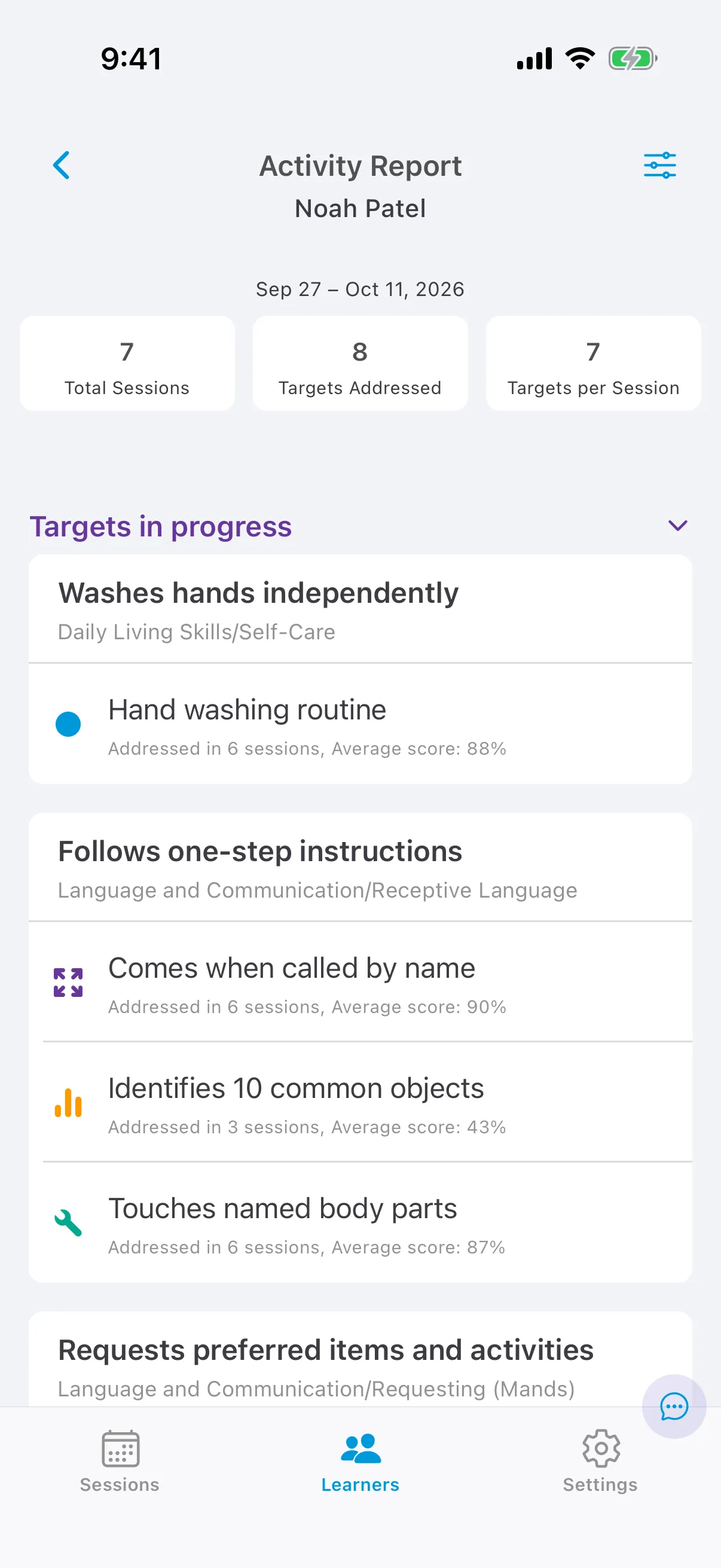
Tap a target to open its details and make changes, for example moving a high-scoring target to Maintenance or marking a neglected target as high priority. Tap back to return to the report where you left off.