

PIN and Face ID
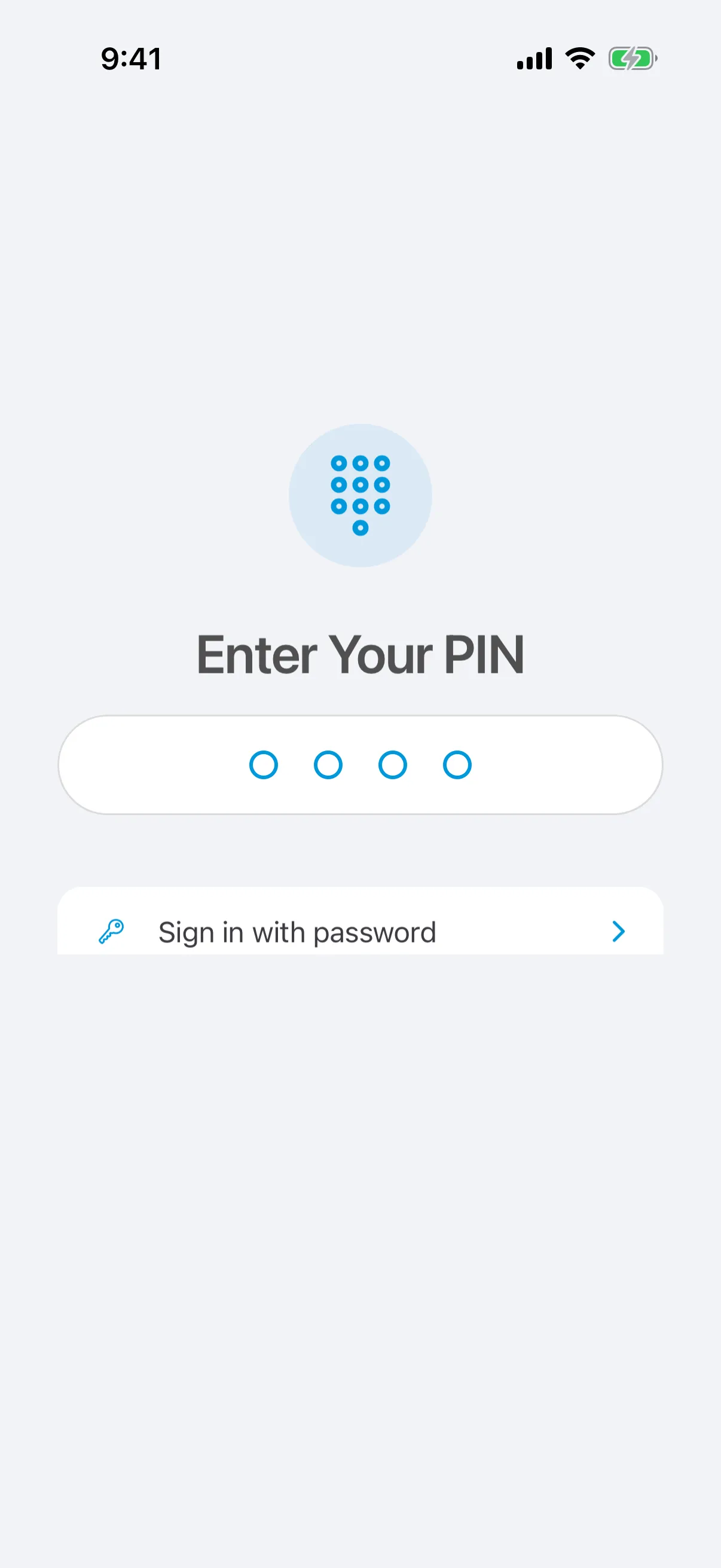
Your PIN protects learner data if your device is lost or someone else picks it up. You enter it each time you open Note.
Change your PIN
Section titled “Change your PIN”- Open Settings.
- Under Security, tap Change PIN.
- Enter a new 4-digit PIN, then enter it again to confirm.
Set up a PIN
Section titled “Set up a PIN”If you chose to use your password each time, you can switch to a PIN: open Settings, and under Security tap Set up PIN.
Face ID and fingerprint
Section titled “Face ID and fingerprint”On devices that support it, Note can unlock with Face ID or your fingerprint instead of the PIN. If it doesn’t recognize you, you can always enter your PIN.
Forgot your PIN?
Section titled “Forgot your PIN?”On the Enter Your PIN screen, tap Forgot PIN?. Sign in with your password, then set a new PIN.